Automatic table combinations
An automatic group is a rule that tells the system which tables can be joined and how many at a time. You do not create each combination by hand. When a reservation arrives, the system looks for free tables that fit the rule and joins them.
Use it when you have many similar tables that can be pushed together in any order. Twenty tables combined six at a time give 38,760 possible combinations, which nobody can create one by one as manual groups.
Create an automatic group
- Open the floor plan editor and choose the area.
- Select the Auto tab, next to Tables and Groups.
- Click + AUTO GROUP. You can also select the tables on the floor plan first and create the group with them.
- Fill in the rule and save.
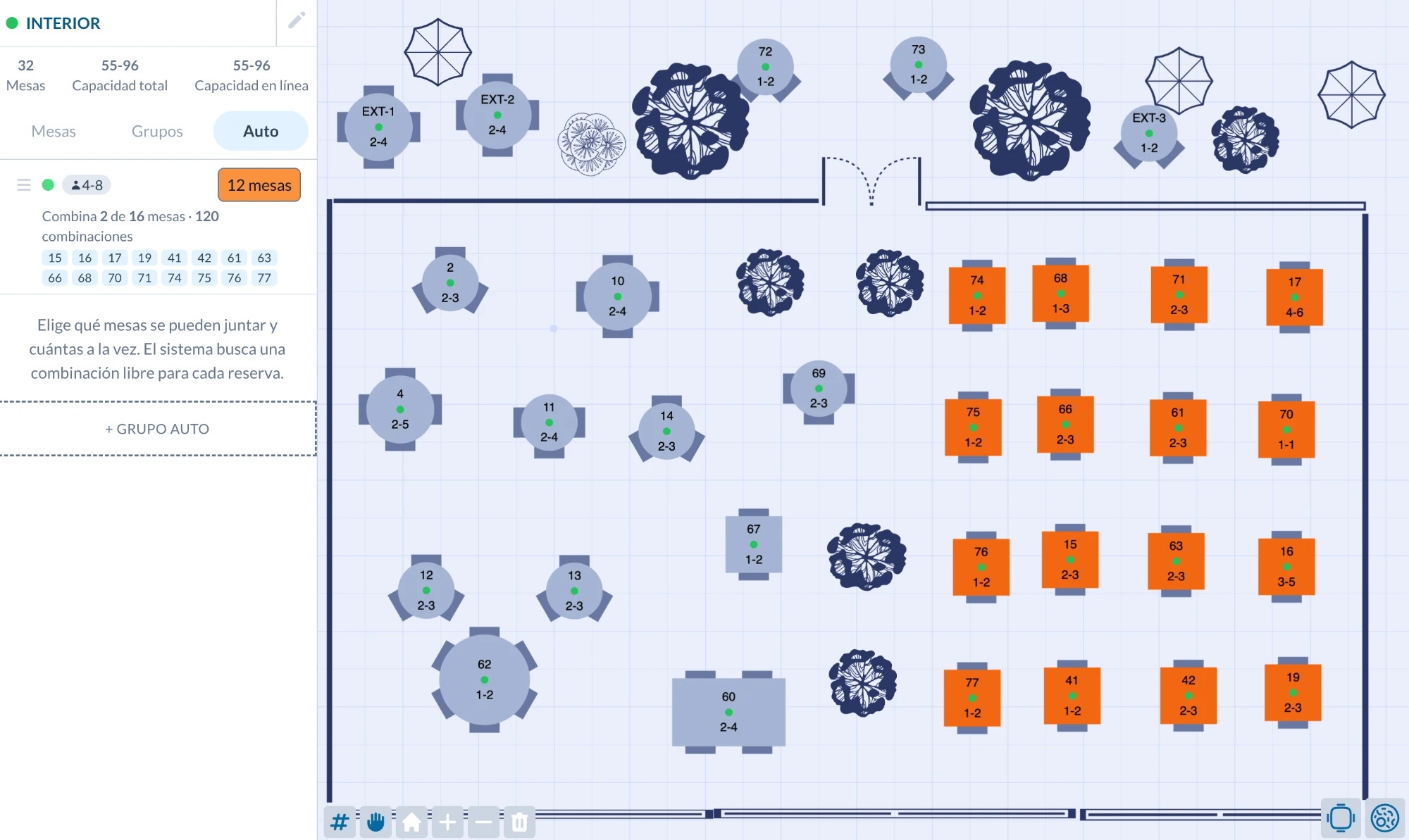
The rule has these fields:
| Field | What it does |
|---|---|
| Name | Optional. Helps you recognise the rule in the sidebar. |
| Bookable online | When it is off, the rule is not used for online reservations. |
| Tables to combine | How many tables are joined for one reservation, from 2 to 10. |
| Min seats / Max seats | The party sizes this rule accepts. |
| Tables | The tables that can be combined with each other. |
In the example above the rule reads "any 2 of 16 tables, for 4 to 8 guests". The sidebar shows how many combinations that rule covers, 120 in this case. Move the mouse over a rule to highlight its tables on the floor plan.
You need at least as many tables selected as the number of tables to combine, and the maximum seats cannot be lower than the minimum.
Several rules in the same area
You can create as many rules as you need, and the same table can belong to more than one. A common setup is one rule for pairs of tables and another one for large parties.
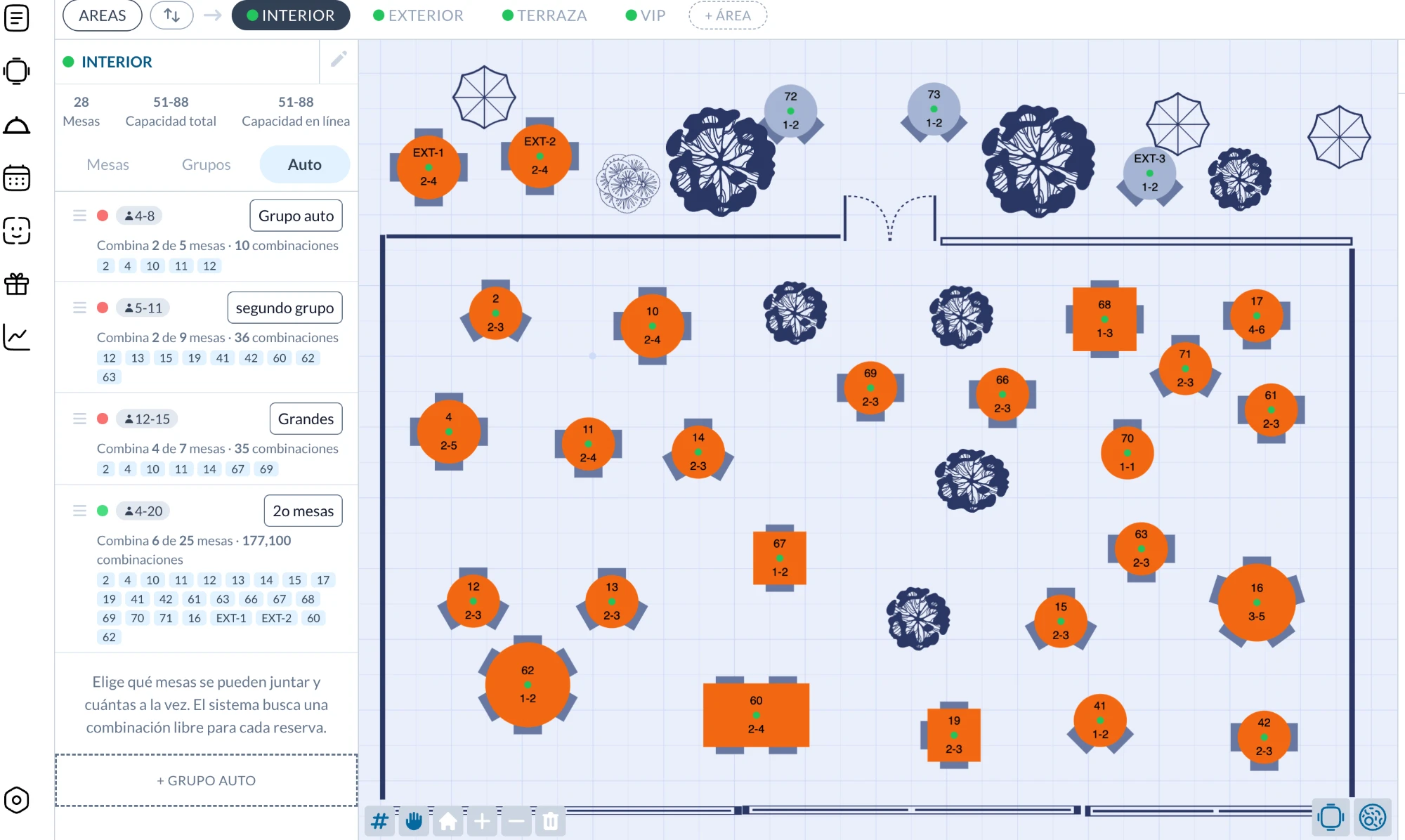
The green or red dot next to each rule turns online booking on or off for that rule. Drag the rules to change their order.
How the system assigns tables
For each reservation the system searches in this order and stops at the first match:
- A single table where the party fits.
- A manual group from the Groups tab.
- An automatic group.
When more than one automatic rule accepts the party size, the system uses the rule with the lowest maximum seats first. If two rules are equal, it prefers the one that joins fewer tables, and then the order in the sidebar.
Inside a rule, the system picks free tables that are close to each other on the floor plan. Distances are read from the current position of each table, so when you move tables and save the floor plan, the next reservations use the new positions. Existing reservations keep the tables they already have.
Tables that are occupied or blocked at that time are never used.
Example: one service, step by step
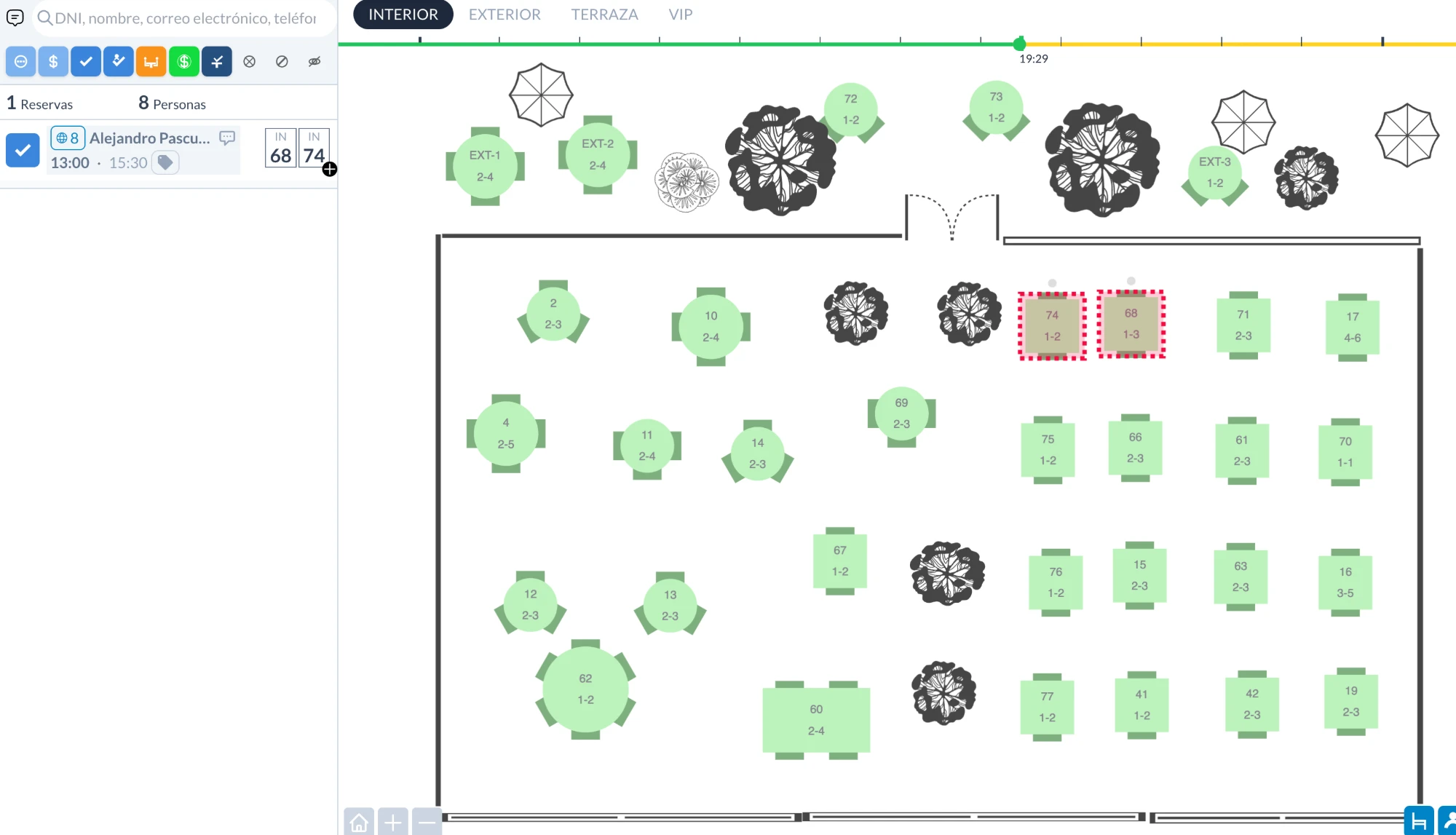
This restaurant has one rule: any 2 of the 16 square tables, for 4 to 8 guests.
The first reservation for 8 guests gets tables 68 and 74, which are next to each other.
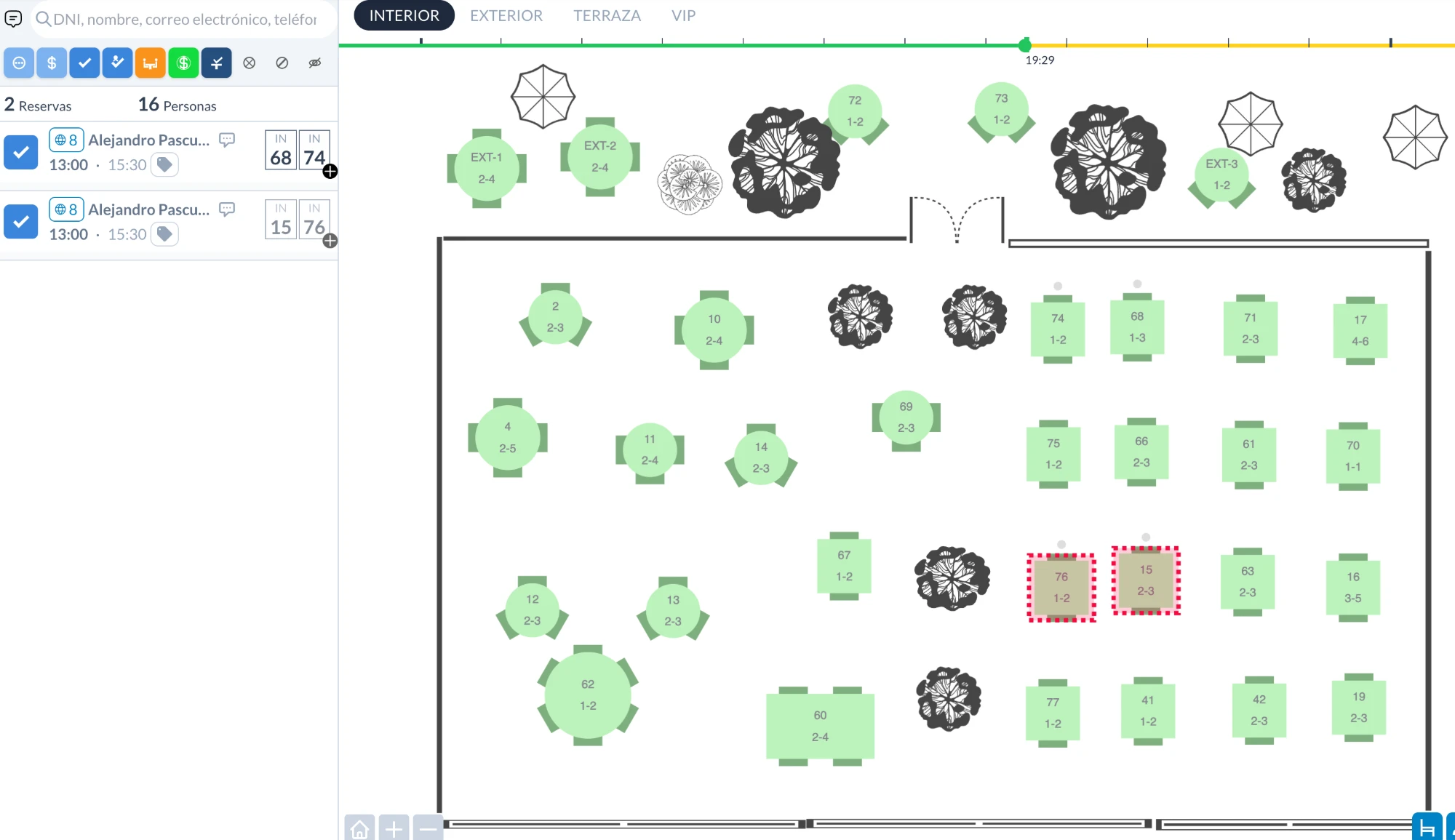
A second reservation for 8 guests at the same time gets another free pair, tables 15 and 76.
A party of 7 gets tables 66 and 75.
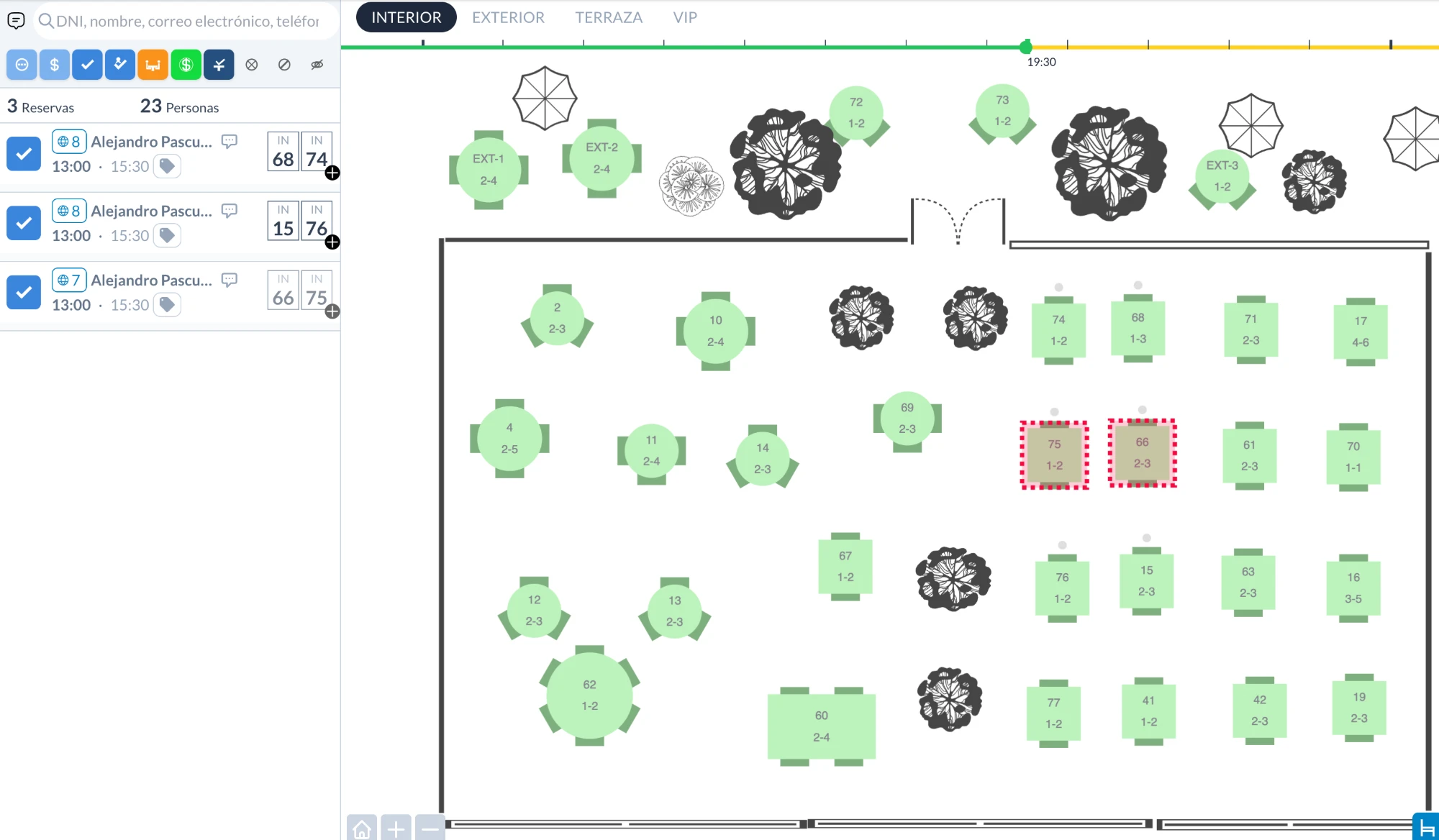
A party of 5 fits in table 16, so it gets that single table and no tables are joined. The next party of 8 gets tables 41 and 77.
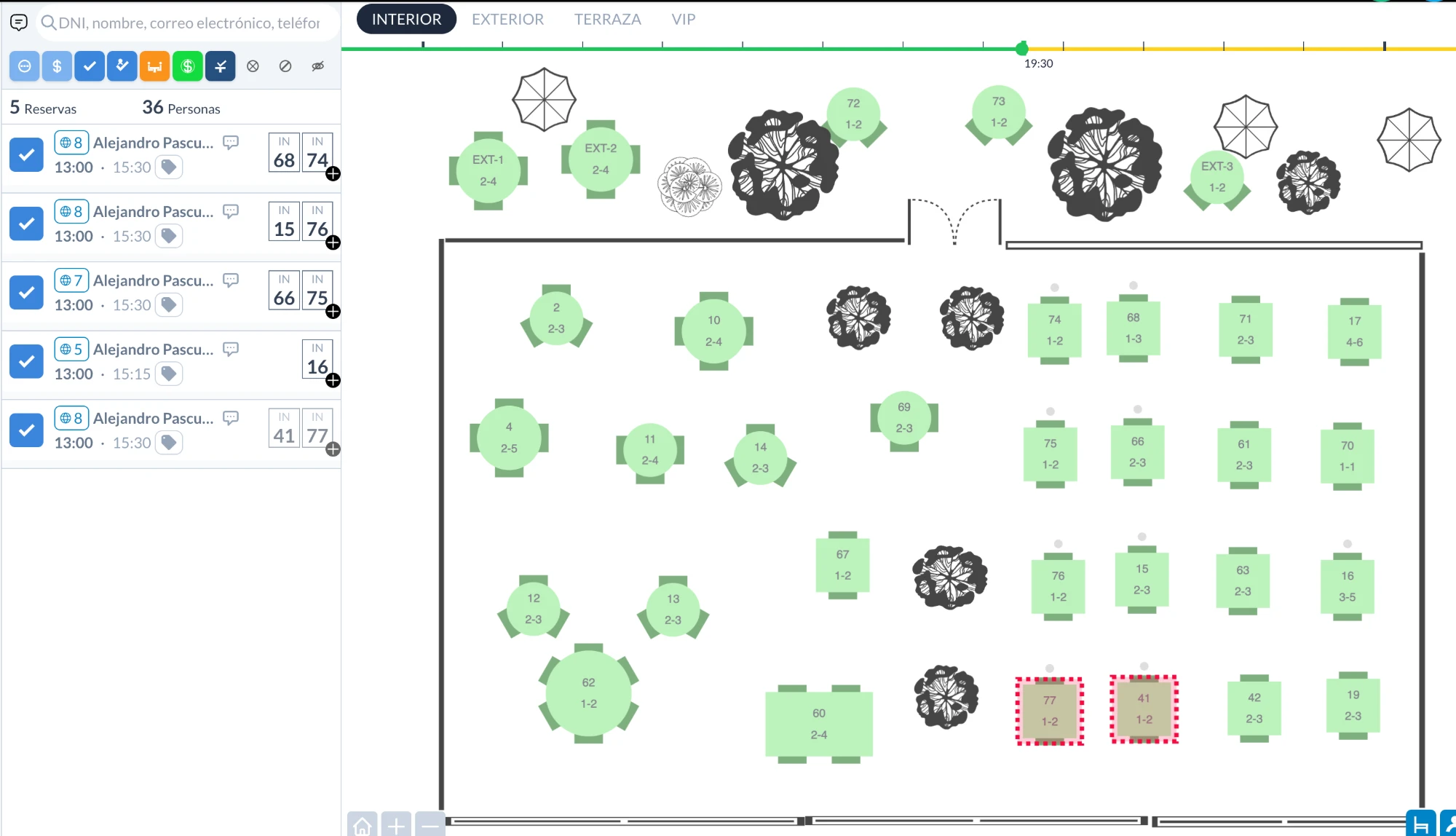
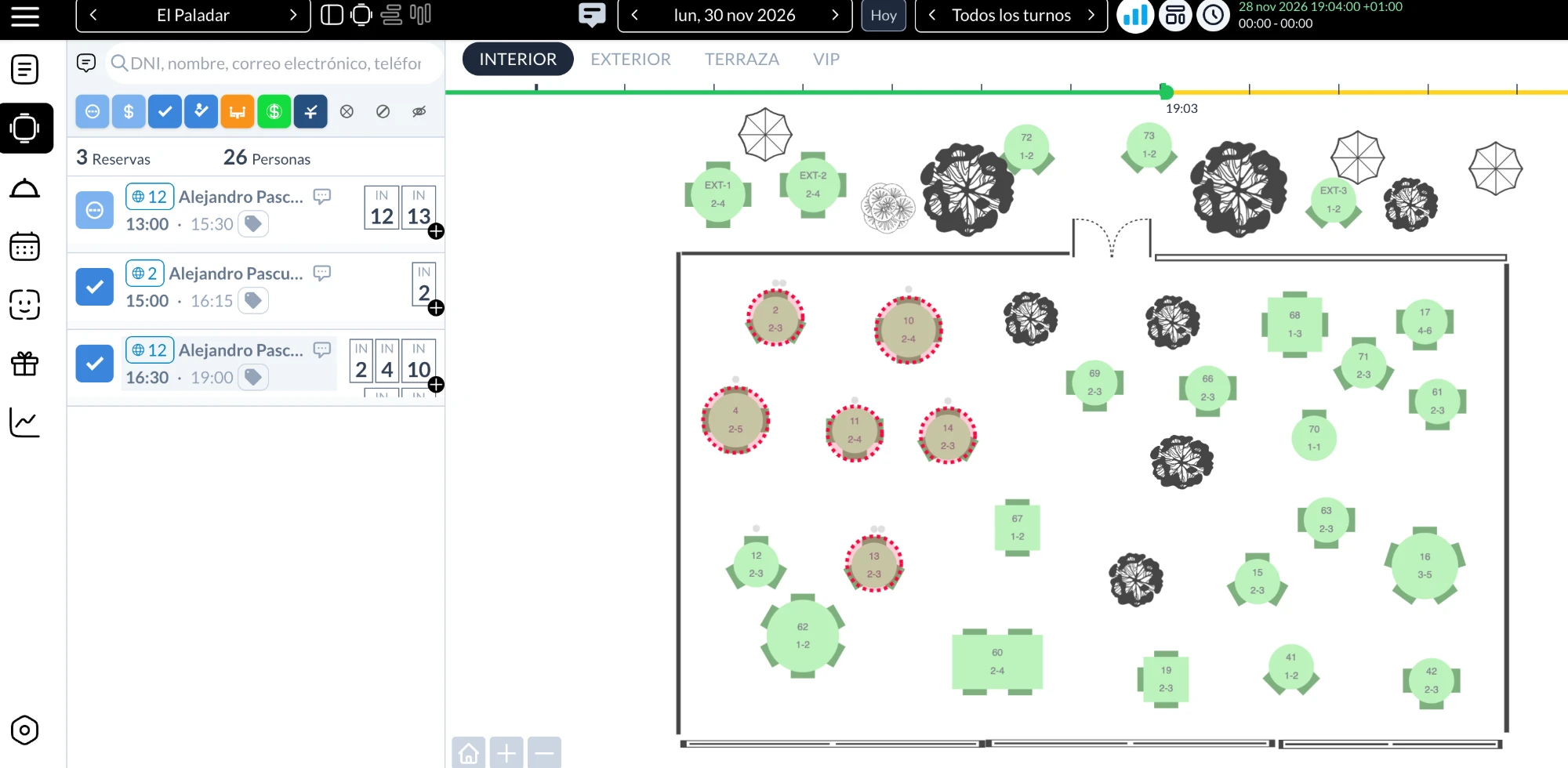
The same works with larger rules. Here a reservation for 12 guests is seated on six tables joined by a rule that combines 6 tables.
Automatic groups and shifts
You do not select automatic groups in the shift. They follow the reservation mode of the shift:
| Reservation mode | Automatic groups |
|---|---|
| All Tables | All active rules are used. |
| Some Tables | Rules are used only with the tables selected in the shift. |
| Tables with schedule | Not used. Each combination has its own schedule, defined by hand. |
| Tables Layouts | Not used. |
| Total covers / Covers per slot | Not used. These modes do not assign tables. |
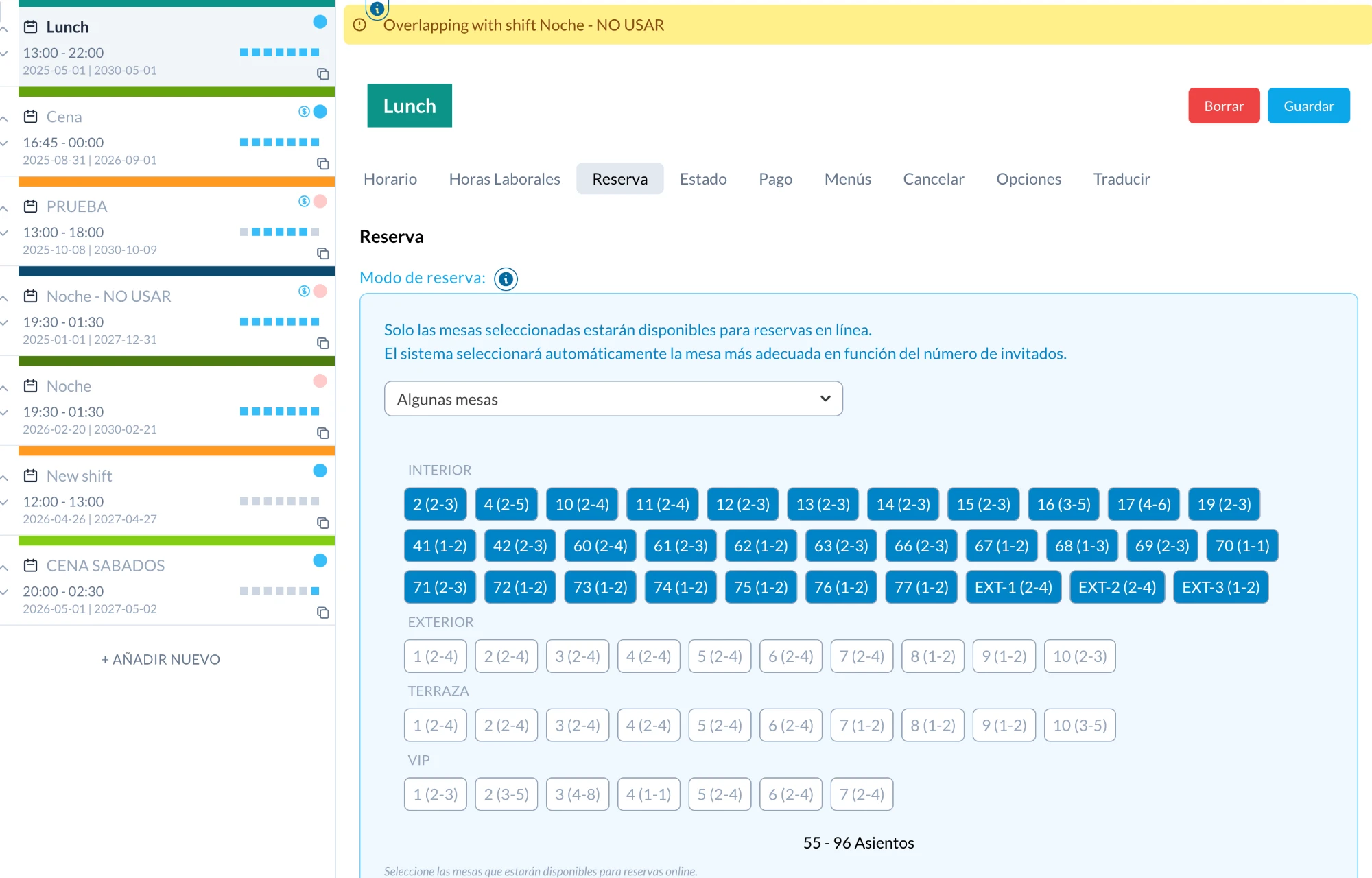
In Some Tables mode a rule applies when at least as many of its tables as the number to combine are selected in the shift. A rule for 2 tables out of 16 still works if the shift offers only 5 of those tables, and it will combine only those 5.
Good to know
- Guests cannot choose an automatic group when they pick a table on the booking form. The system assigns it.
- A rule belongs to one area and combines tables of that area.
- The rule decides the party sizes, so set the minimum and maximum seats to what the joined tables can really seat.
- If you only have a few fixed combinations, manual groups are still the simplest option. See Add groups.