MENUS & OFFERS
The Menus module lets you attach set menus, tasting menus, per-guest choices, optional extras and special experiences to your reservations.
Instead of only taking a table booking, you can ask the customer what they want to eat, collect their selection in advance and — when needed — request a prepayment.
This is ideal for:
- Set and tasting menus where every guest chooses one option
- Optional extras such as wine pairings, a birthday cake or a bottle of champagne
- Special experiences or packs the customer picks for the whole table
- Prepaid events where you charge a fixed amount or a percentage of the menu
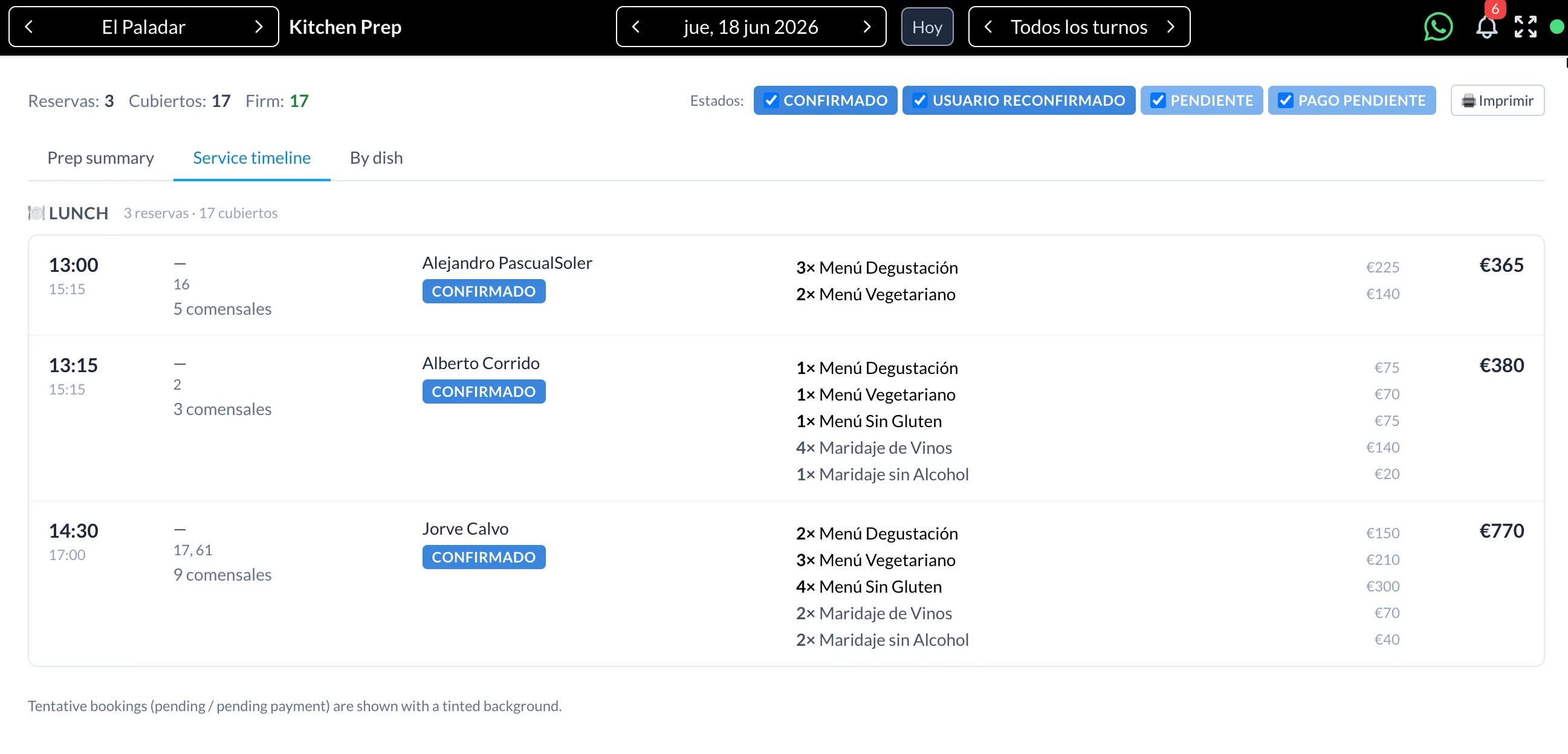
Everything the customers select is collected automatically and turned into a clean, aggregated preparation list for the kitchen.
How it works
The Menus module works in four simple steps:
- You build a menu with one or more sections and items
- You attach the menu to a shift or event and define the rules (when it is shown, for how many guests, and whether a payment is required)
- The customer selects the menu — during the booking or later through a link
- The kitchen gets an aggregated list of everything that needs to be prepared
1. Build your menus
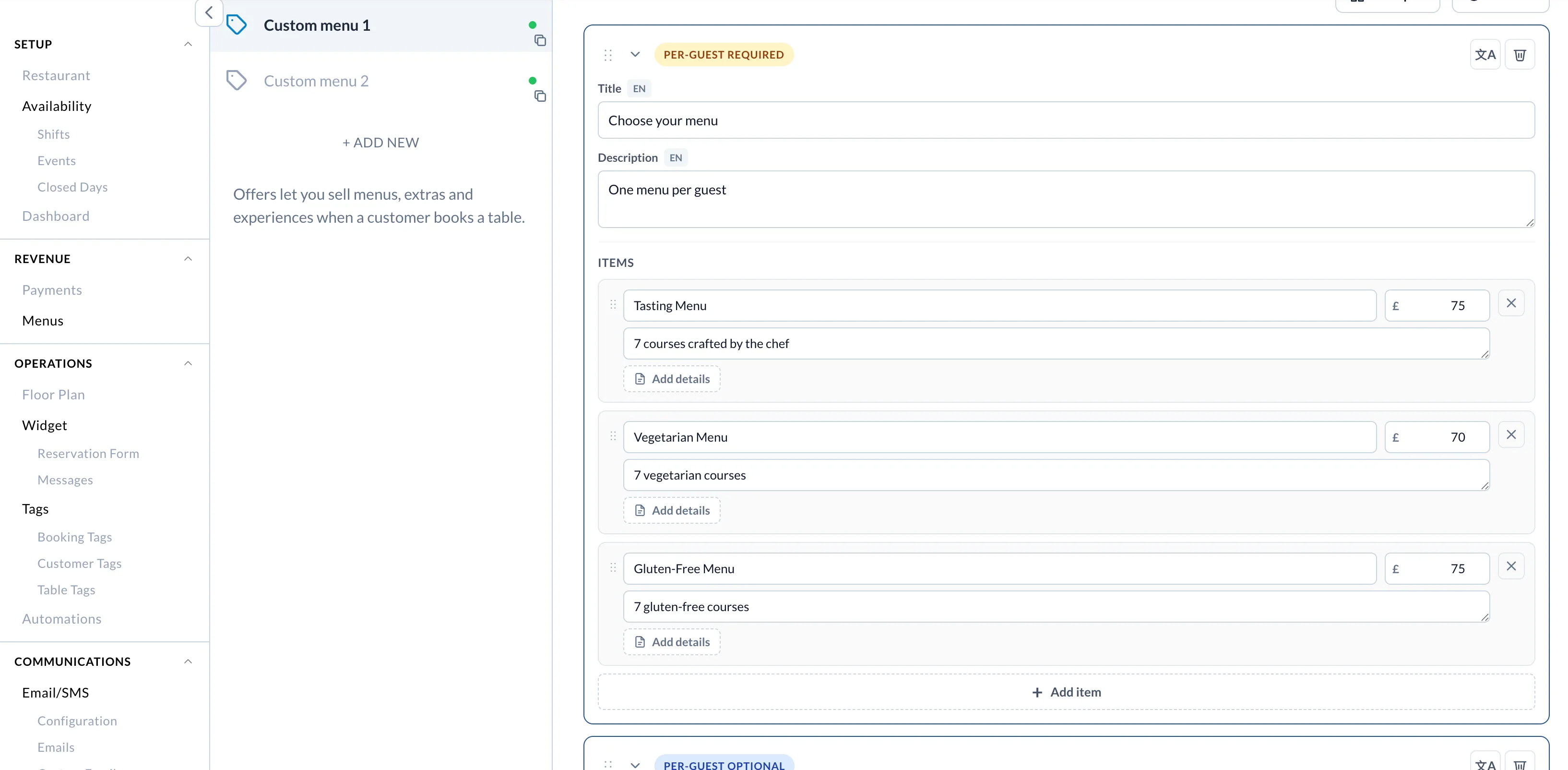
A menu (internally called an offer) is made of one or more sections, and each section contains items.
For every item you can define:
- A name and description (multilingual)
- A price
- Optional rich details (for example, the courses included in a tasting menu)
You can reorder sections and items, and translate everything into the languages your widget supports.
2. Section types
When you add a section you choose its type. The type controls how the customer interacts with it and how the price is calculated.
Per-guest menu (required)
Every guest must be assigned a menu, and the total number of menus must match the number of guests. Use it for set or tasting menus where each diner picks one option.
Per-guest extras (optional)
Optional extras assigned to each guest, such as a wine pairing or a supplement. The quantity is limited by the number of guests.
Reservation extras (optional)
Optional extras for the whole table, such as a bottle of wine, a cake or a decoration.
Single offer choice
The customer picks one experience or pack for the reservation, for example a "Chef's table experience" or a "Standard dinner".
For Reservation extras and Single offer choice you can also choose how the price is calculated:
- Flat — a fixed price
- Per guest — the price is multiplied by the number of guests
- Base + per guest — a base price plus an amount per guest
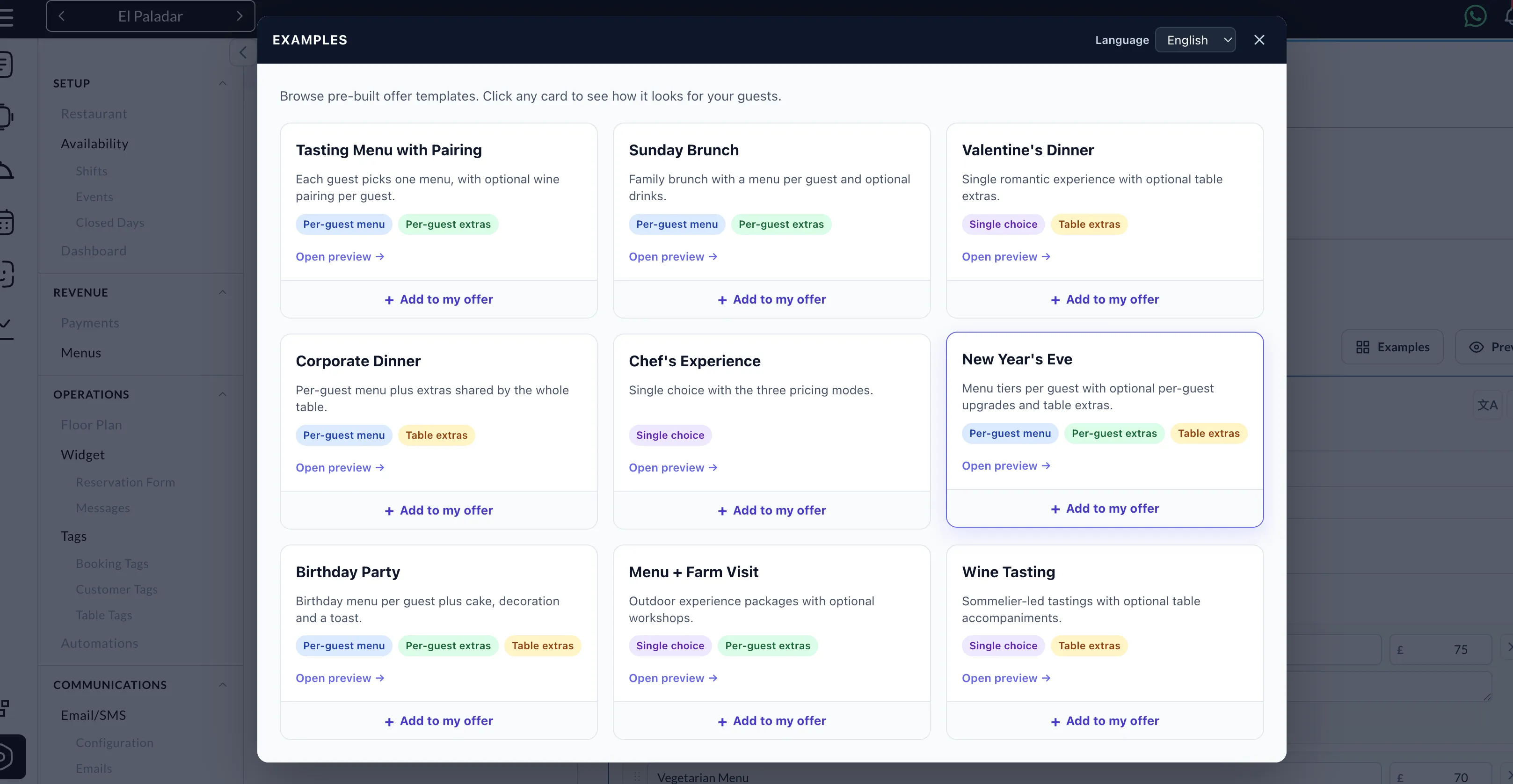
3. Menu examples
You can combine several sections in a single menu to build exactly what your restaurant offers.
A typical menu could include:
- A Per-guest menu (required) section with your tasting and vegetarian options
- A Per-guest extras section with wine or non-alcoholic pairings
- A Reservation extras section with add-ons for the table (a cake, a bottle of champagne)
This lets you sell the main experience and upsell extras in the same flow.
4. Attach a menu to a shift or event
A menu becomes active when you attach it to a shift or event.
From the shift configuration you connect the menu and define the rules that decide when and how it is offered to the customer.
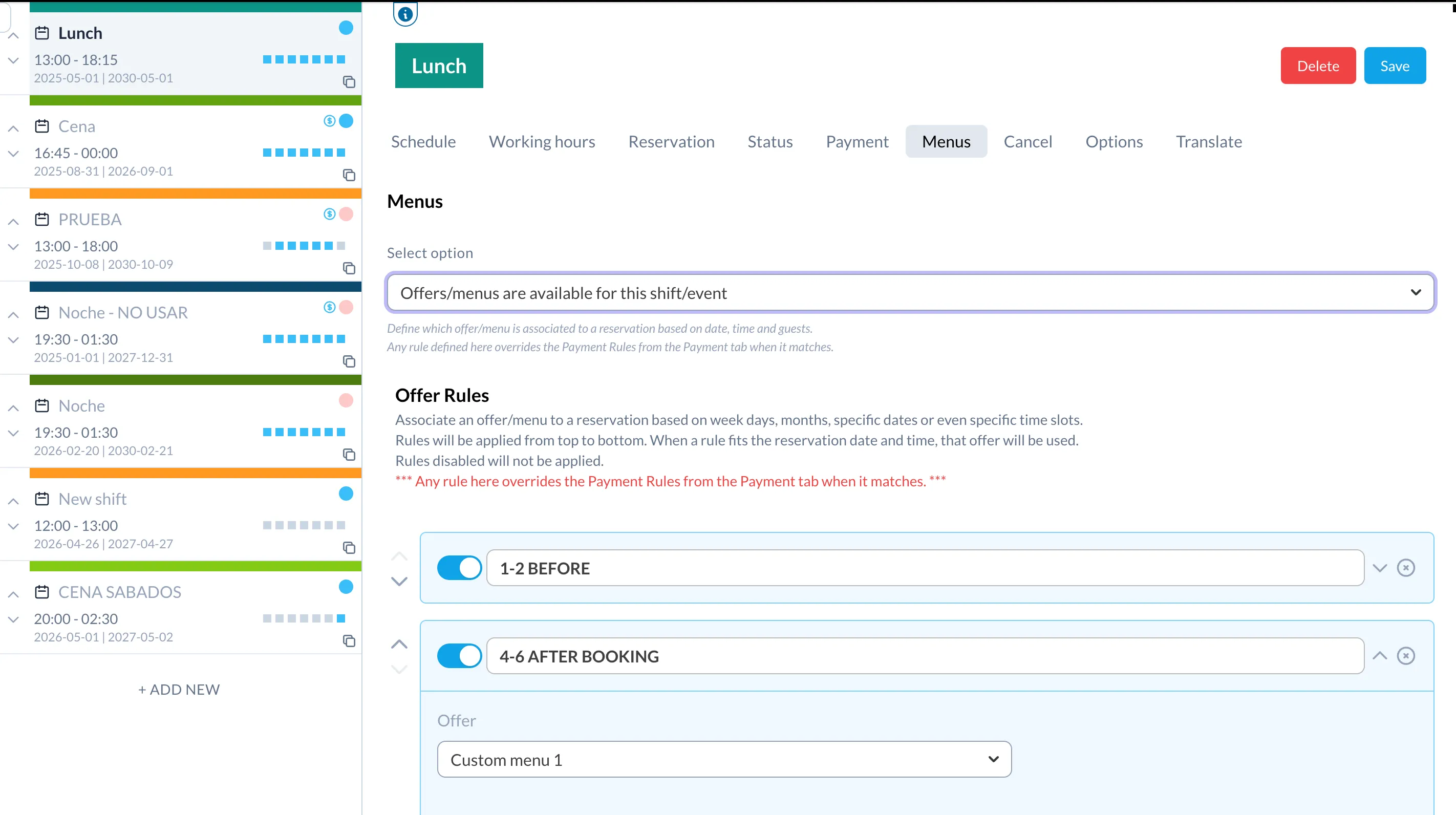
5. Display and payment rules
Each menu is governed by rules. A rule decides when the menu is shown, to whom, and whether a payment is required.
When is the menu shown
- During the booking — the customer selects the menu before finishing the reservation
- After the reservation — the customer receives a link to choose the menu later (useful for large groups or events)
Conditions
- Number of guests — show the menu only for a certain party size (for example, set menus required for 6 guests or more)
- You can also scope rules by days, dates and time slots
Payment
A rule can require a prepayment to secure the reservation. The amount can be:
- No payment — the menu is collected but nothing is charged
- Fixed amount — a fixed prepayment
- Price per seat — the prepayment is multiplied by the number of guests
- Percentage of the menu — the prepayment is a percentage of the chosen menu, so the amount is calculated after the customer selects what they want to eat
6. How customers choose their menu
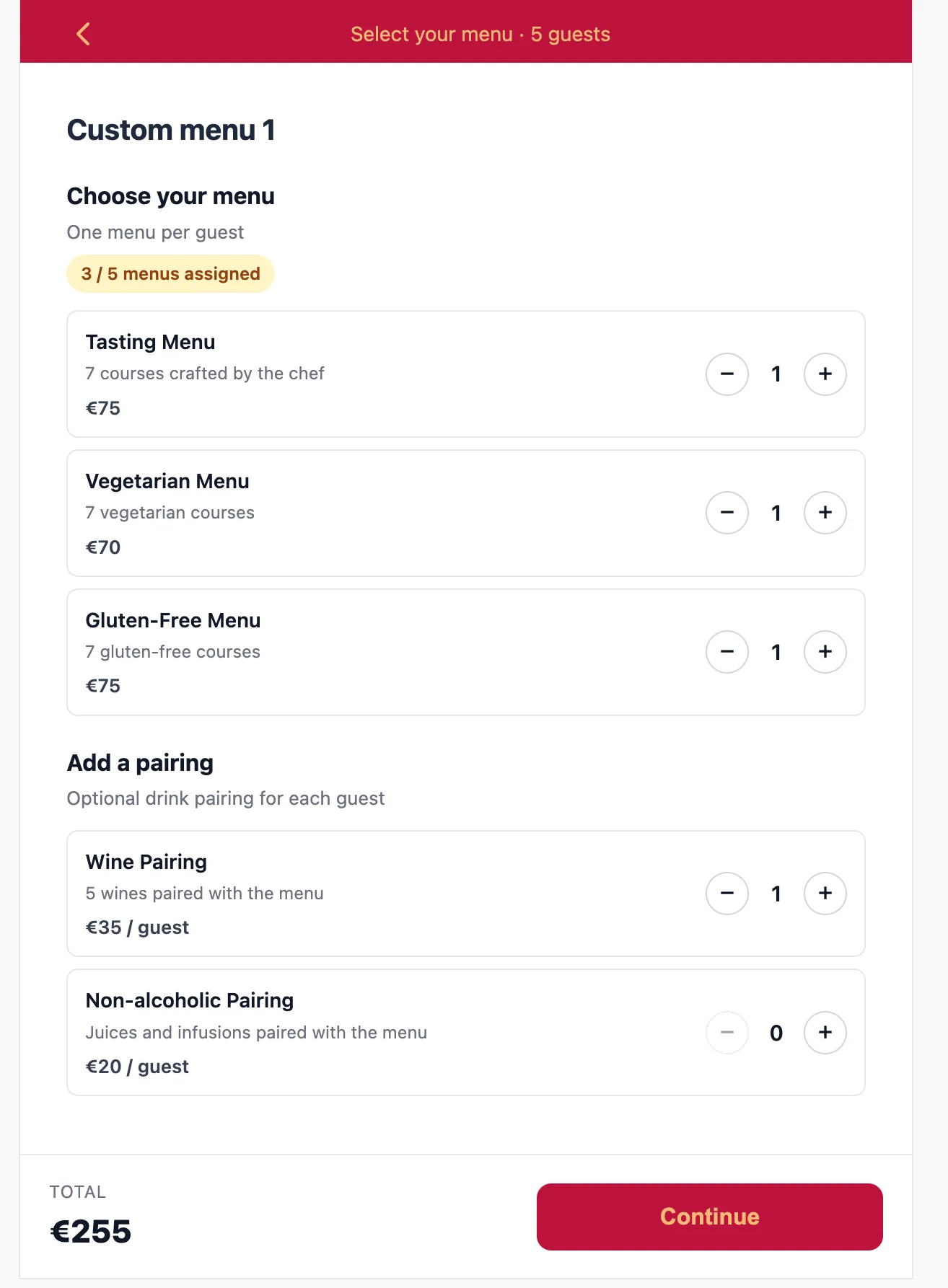
When the menu is shown during the booking, the customer selects the items as part of the reservation flow.
Depending on the section type they will use counters (for per-guest menus and extras) or a single choice (for a single offer). The total is calculated in real time, and if a prepayment is required they are taken to the payment step.
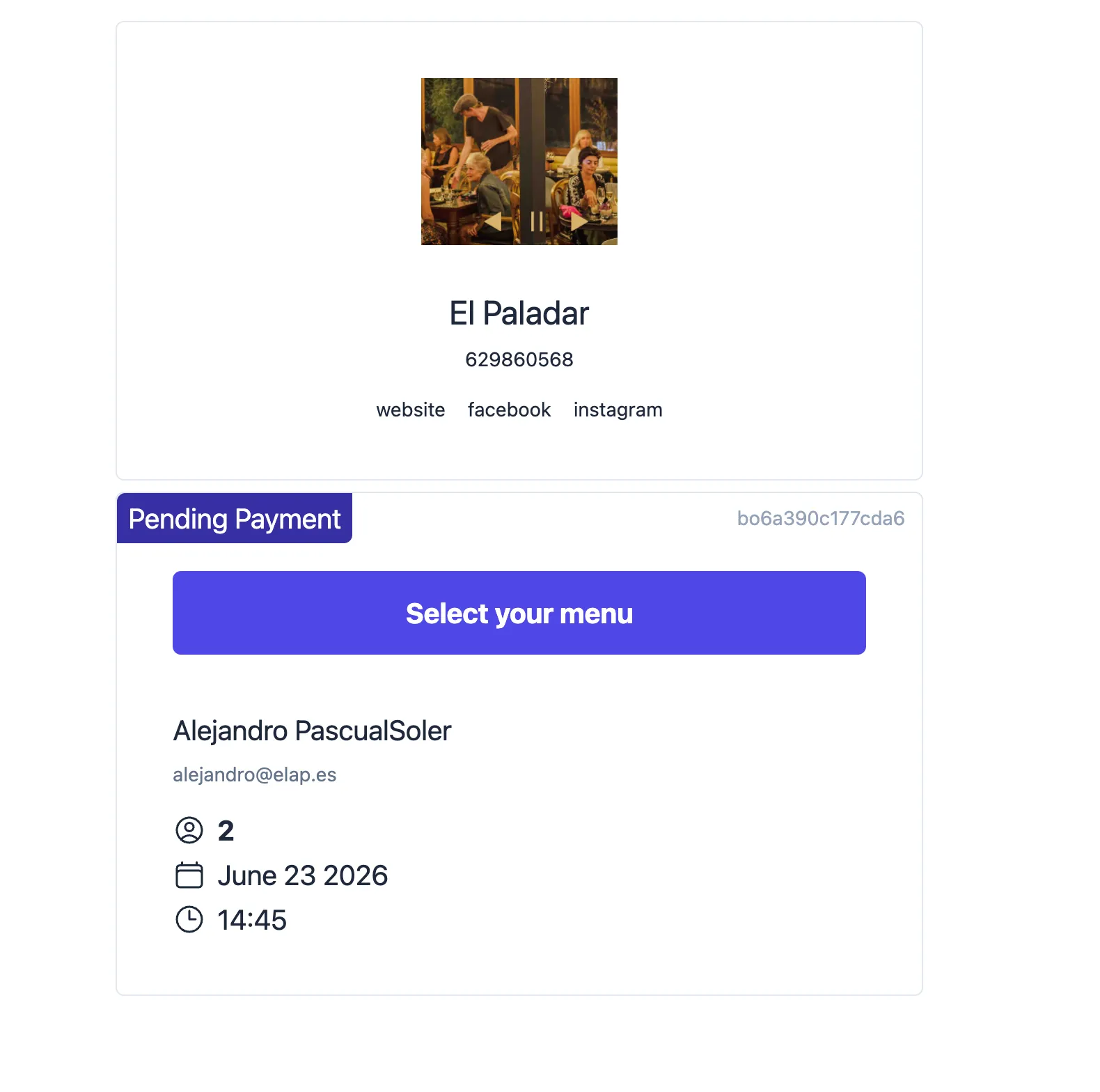
When the menu is shown after the reservation, the customer receives a link to their booking page where they can choose the menu at any time.
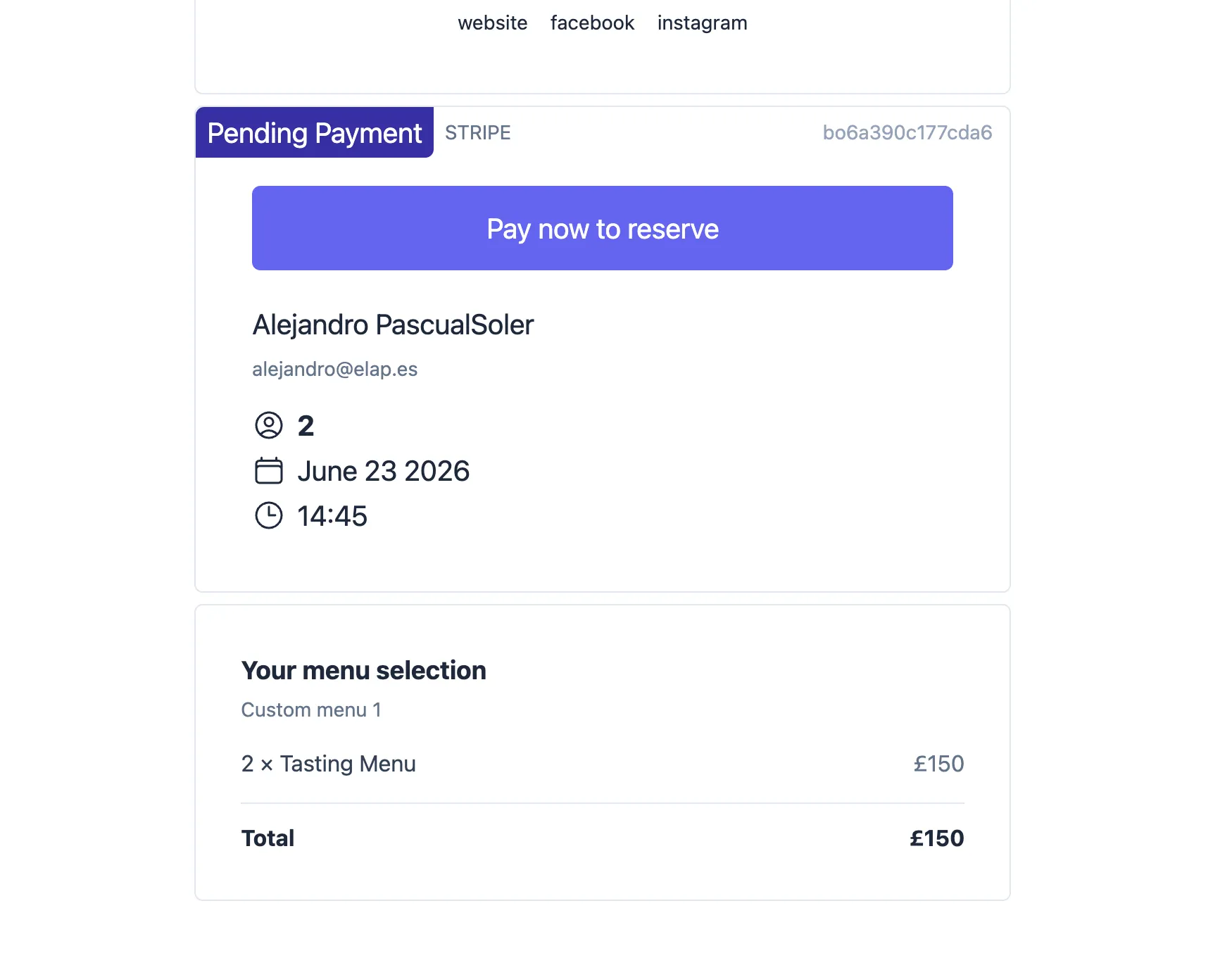
If a payment is required, the prepayment is requested right after the selection is confirmed.
7. Send payment and menu requests manually
Not every booking comes from the website. Many reservations are taken over the phone or created directly from the dashboard.
For these bookings you can send the customer a link to choose their menu and/or pay, without waiting for them to go through the widget.
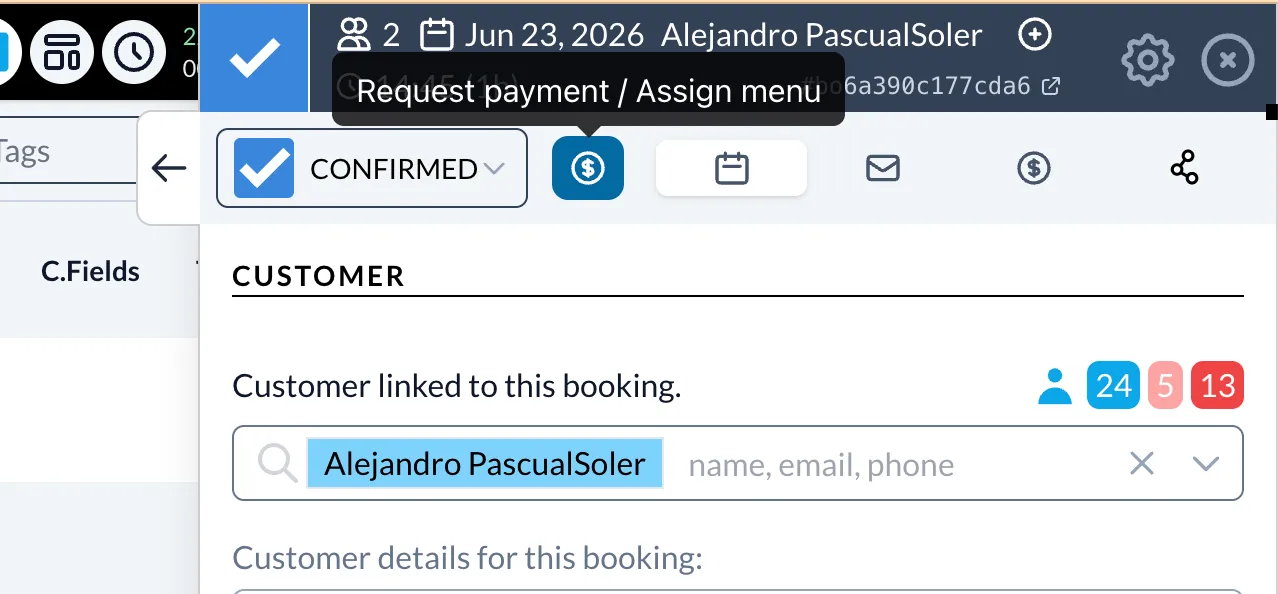
From the booking editor there is a dedicated button to request a payment or assign a menu.
A popup lets you configure the request:
- Payment to request — no payment, a fixed amount, or a percentage of the menu
- Menu to choose — assign the menu the customer must select later
- After completion — the status the booking should land on once the customer finishes (Confirmed by default)
- Notify the customer — by email and/or WhatsApp, with the link to complete the booking
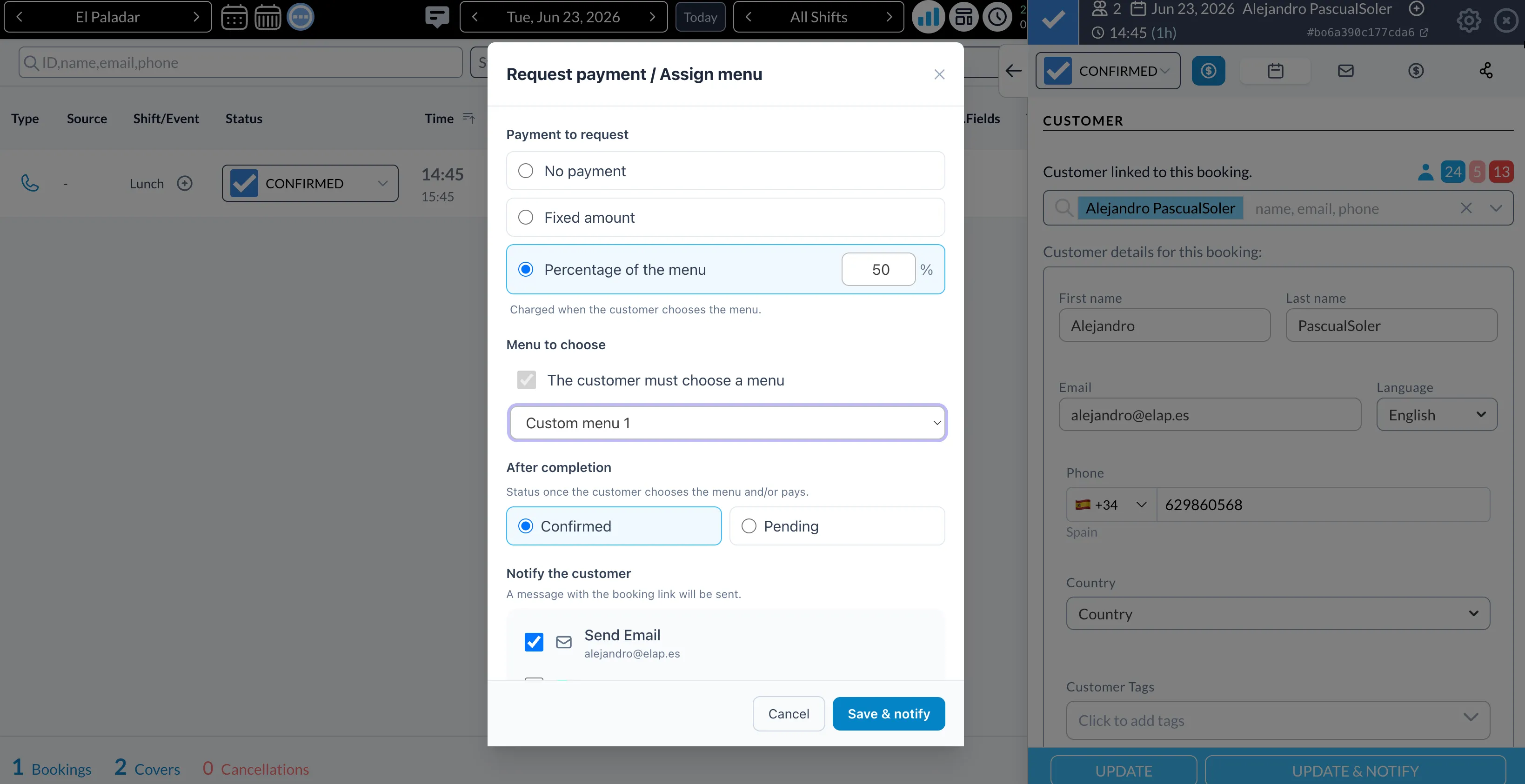
This is especially useful when a customer calls by phone: you create the booking, send a payment or menu link in seconds, and the customer completes everything from their own device.
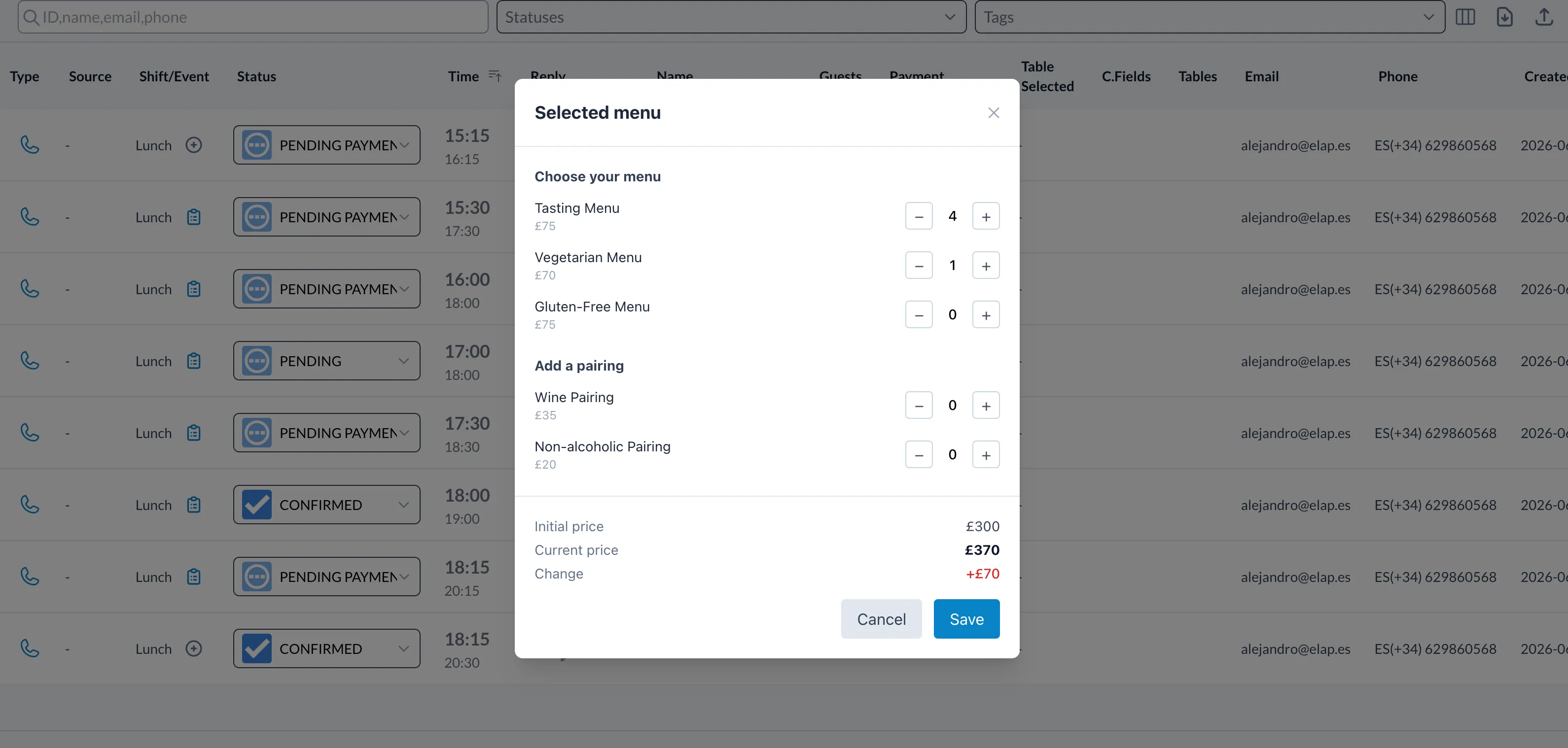
You can also view or edit the chosen menu directly from the dashboard — handy when you take the order yourself over the phone.
8. Kitchen preparation view
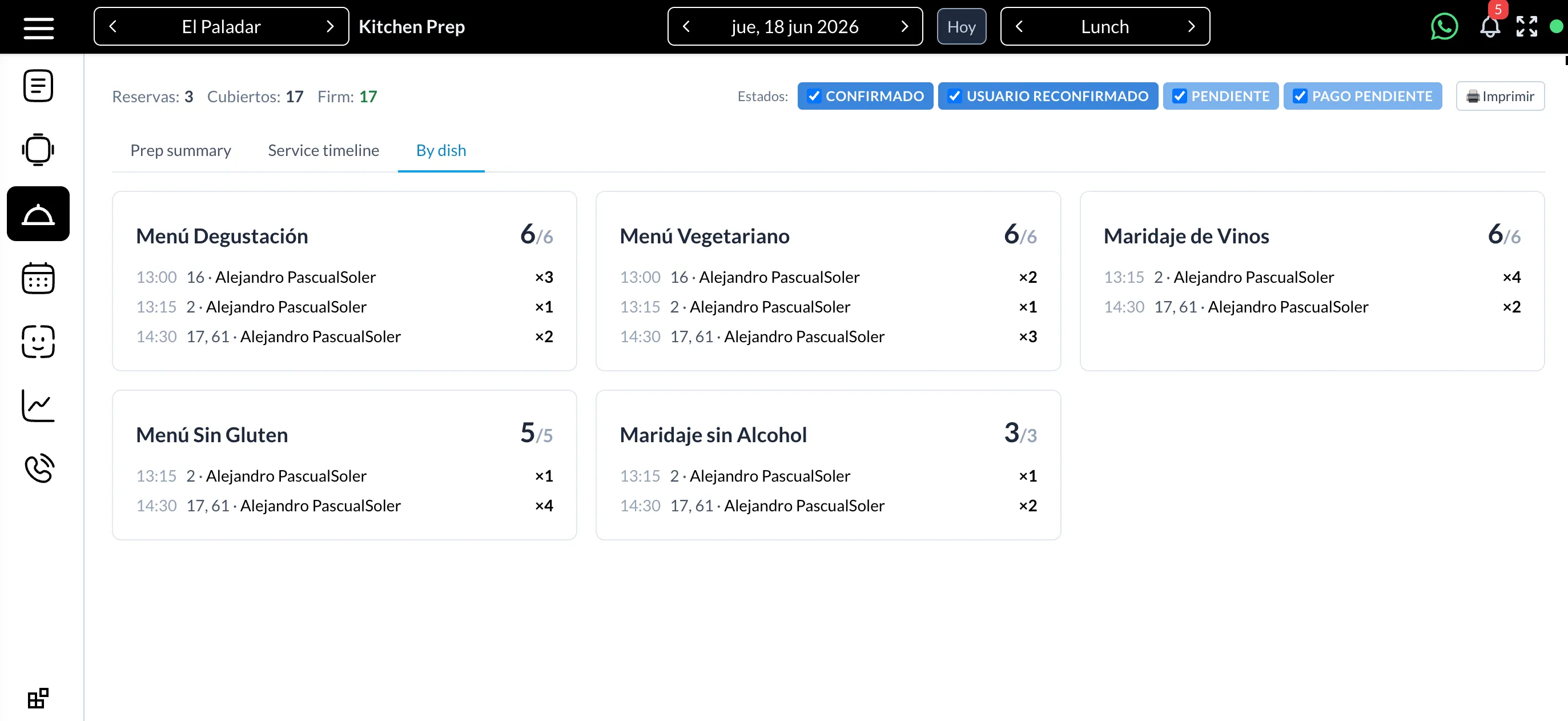
Once customers start selecting their menus, the system builds an aggregated preparation list for the kitchen.
Instead of opening every booking one by one, the kitchen sees how many of each dish are needed across all the reservations of the day, grouped by section type (menus, pairings and per-guest extras, and table extras).
Each item shows a firm count (from confirmed bookings) and an expected count (including bookings still pending), so the team can plan quantities ahead of service.