GIFT VOUCHERS
The Gift Vouchers module lets your guests buy gift vouchers online and redeem them when they book — online in the booking widget or directly at the restaurant.
The money comes in today, the meal is served later, and every euro of balance is tracked: what you sold, what was redeemed and what you still owe your guests.
This is ideal for:
- Gift cards of a fixed value, such as €25, €50 or €100
- Free amount cards where the buyer chooses the value
- Experiences sold at a set price, such as a chef's table or a brunch
- Menus per person, such as a tasting menu for two or for the whole family
How it works
The Gift Vouchers module works in five simple steps:
- You create your gift vouchers and choose their type and price
- You share the purchase page (or add the button to your website)
- The customer buys and pays online, and the voucher is sent by email
- The guest redeems the code when booking online or at the restaurant
- You follow every voucher from the dashboard: balance, movements and totals
The module requires the Gift Vouchers addon. Online payments require the PRO plugin and at least one payment gateway.
1. Create your gift vouchers
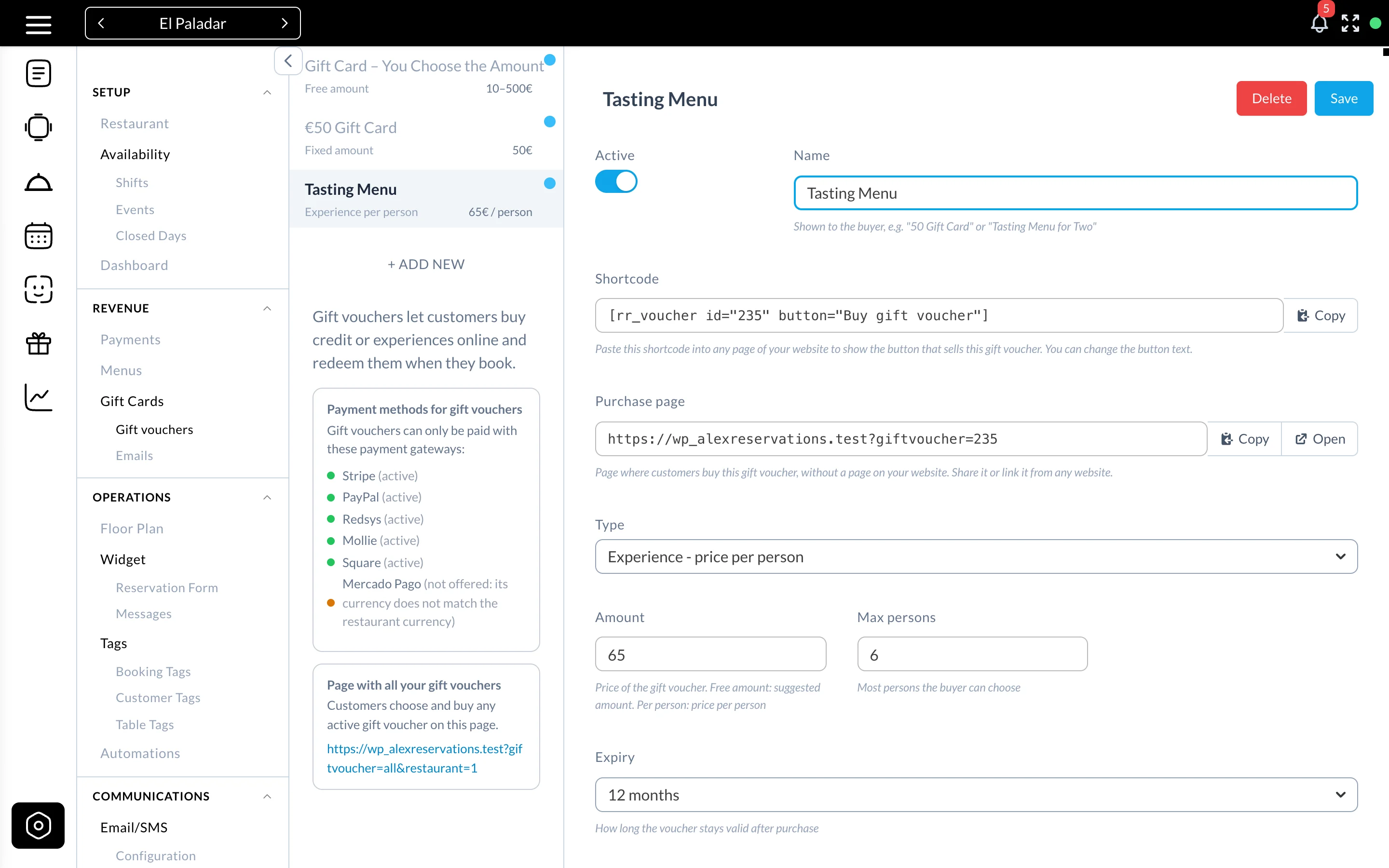
Go to Settings › Gift Cards › Gift vouchers and click + ADD NEW.
For every gift voucher you define:
- Active — only active gift vouchers can be bought online
- Name — shown to the buyer and printed on the voucher, for example "€50 Gift Card" or "Tasting Menu"
- Type and price (see below)
- Expiry — how long the voucher is valid after the purchase (6 to 36 months, or no expiry)
- Description and Terms & conditions — shown on the purchase page and on the voucher
2. The four types of gift voucher
The type decides what the buyer pays. The form only shows the fields that each type needs.
Fixed amount
A gift card of a set value, for example €50. Field: Amount.
Free amount (buyer chooses)
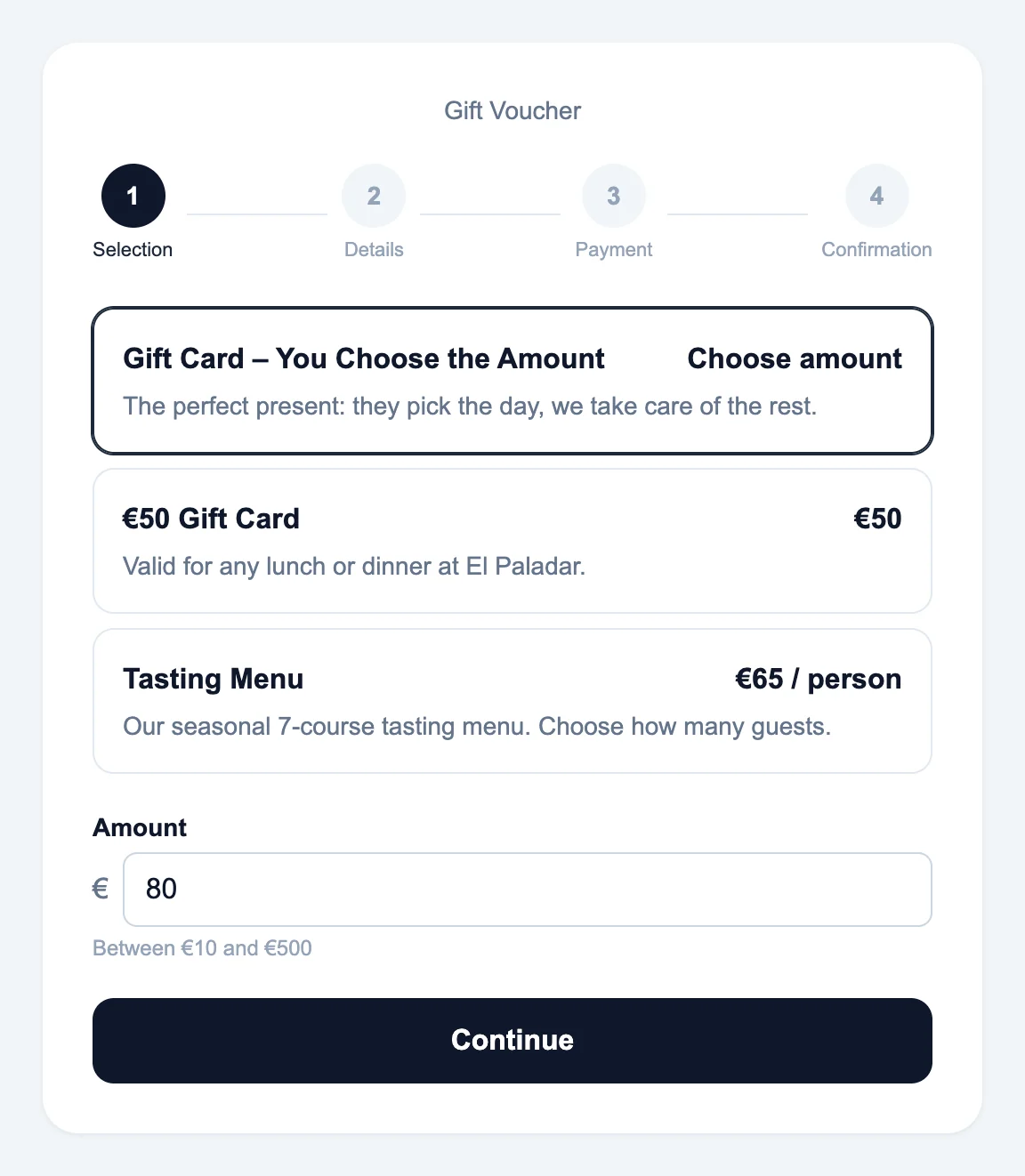
The buyer types the value between a minimum and a maximum, for example between €10 and €500. Fields: Amount (the suggested value), Min amount and Max amount.
Experience / set price
An experience or menu at a closed price, for example "Chef's table" for €120. It works like a fixed amount, but it is reported separately in the totals, which helps with VAT (an experience is a specific service, a gift card is a credit).
Experience - price per person
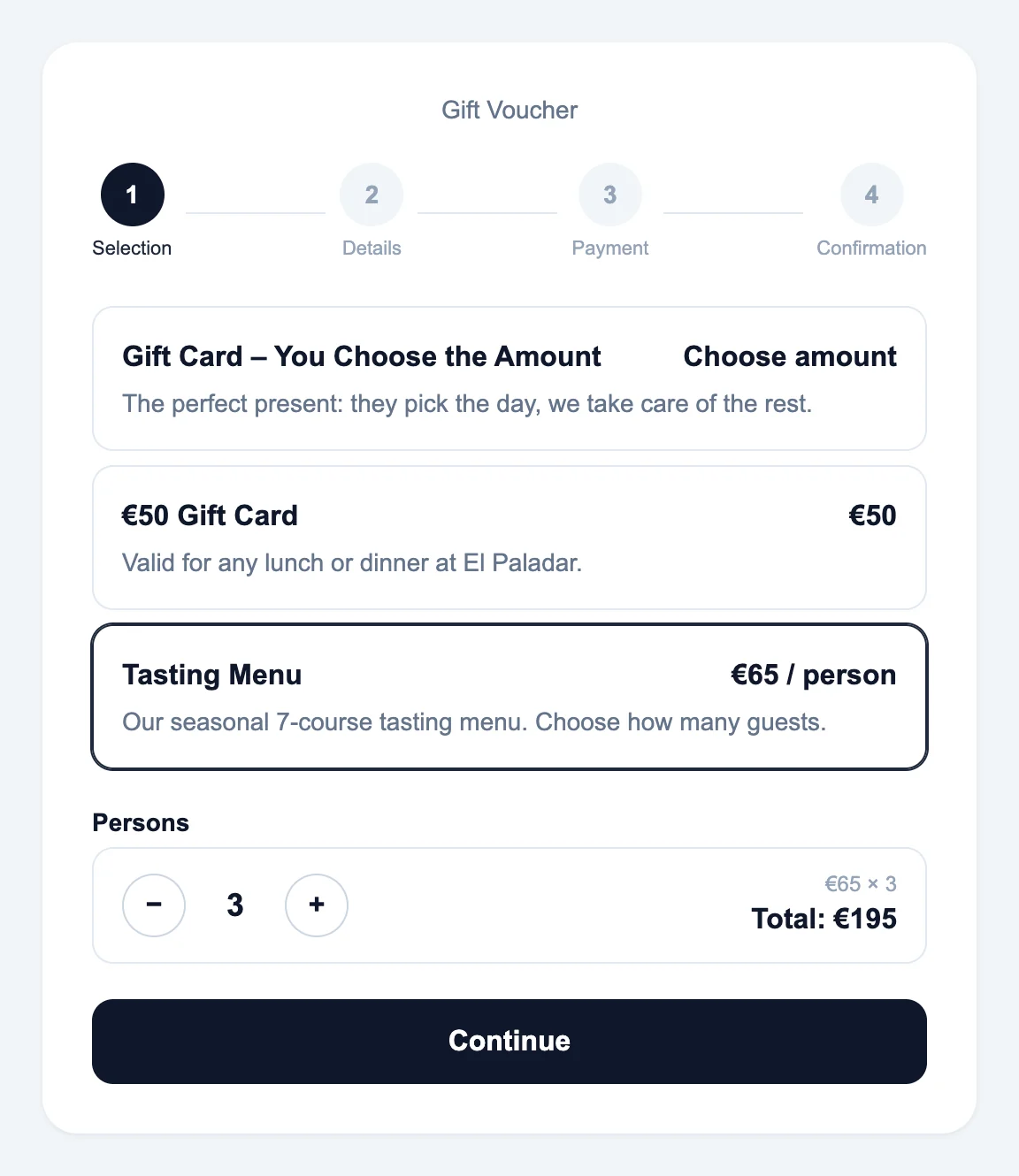
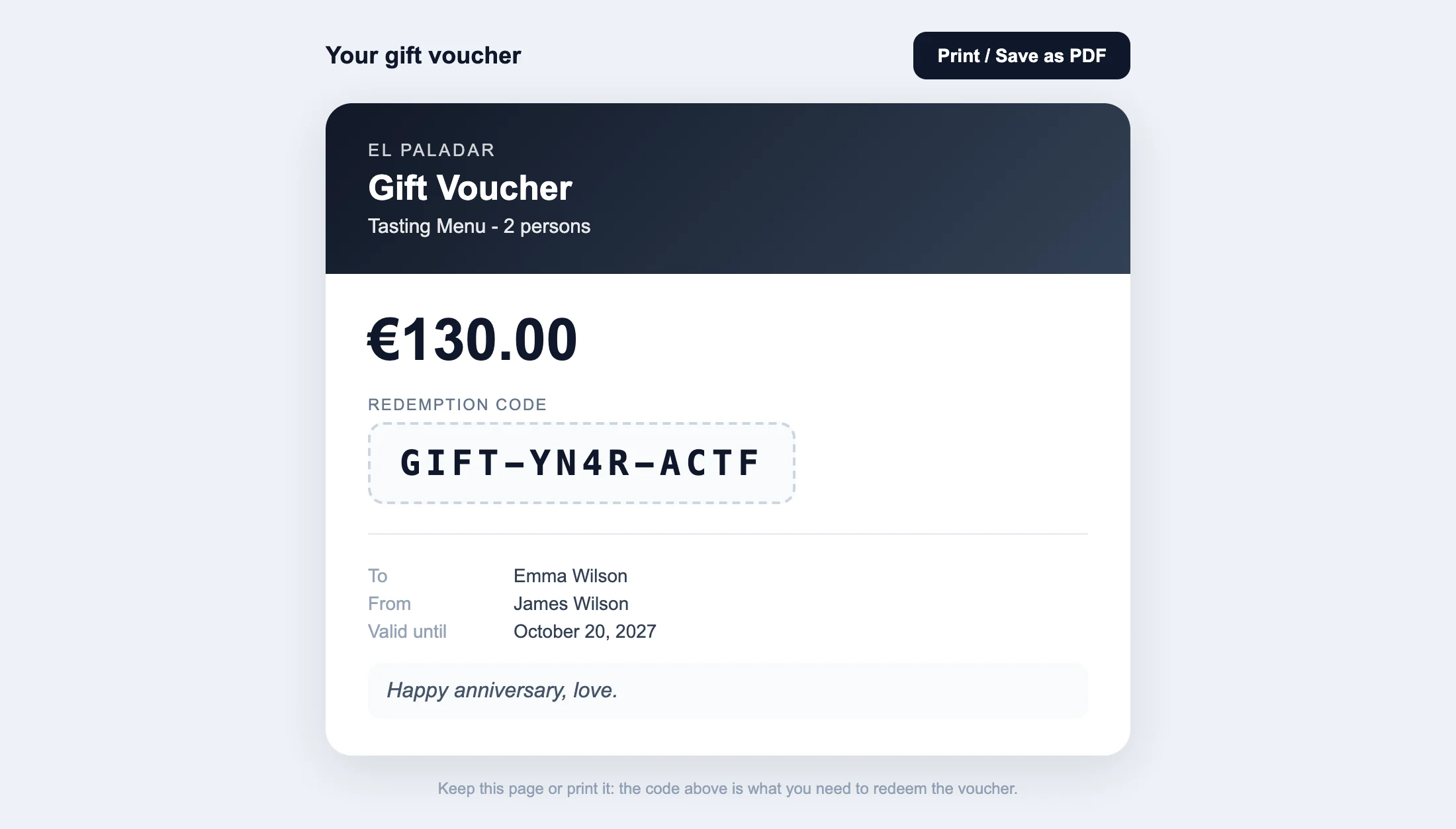
A menu or experience priced per person, for example a tasting menu at €65 per person. The buyer chooses how many persons (from 1 to Max persons) and the voucher is issued for the total: 2 persons = €130. The voucher shows the persons, for example "Tasting Menu - 2 persons".
3. Sell them: your purchase page
Every gift voucher has its own purchase page. You find it in the settings of the gift voucher, under Purchase page, with the buttons Copy and Open.
https://your-website.com/?giftvoucher=235
There is also a page with all your active gift vouchers, so the customer can choose (the link is shown under the list of gift vouchers in the settings):
https://your-website.com/?giftvoucher=all&restaurant=1
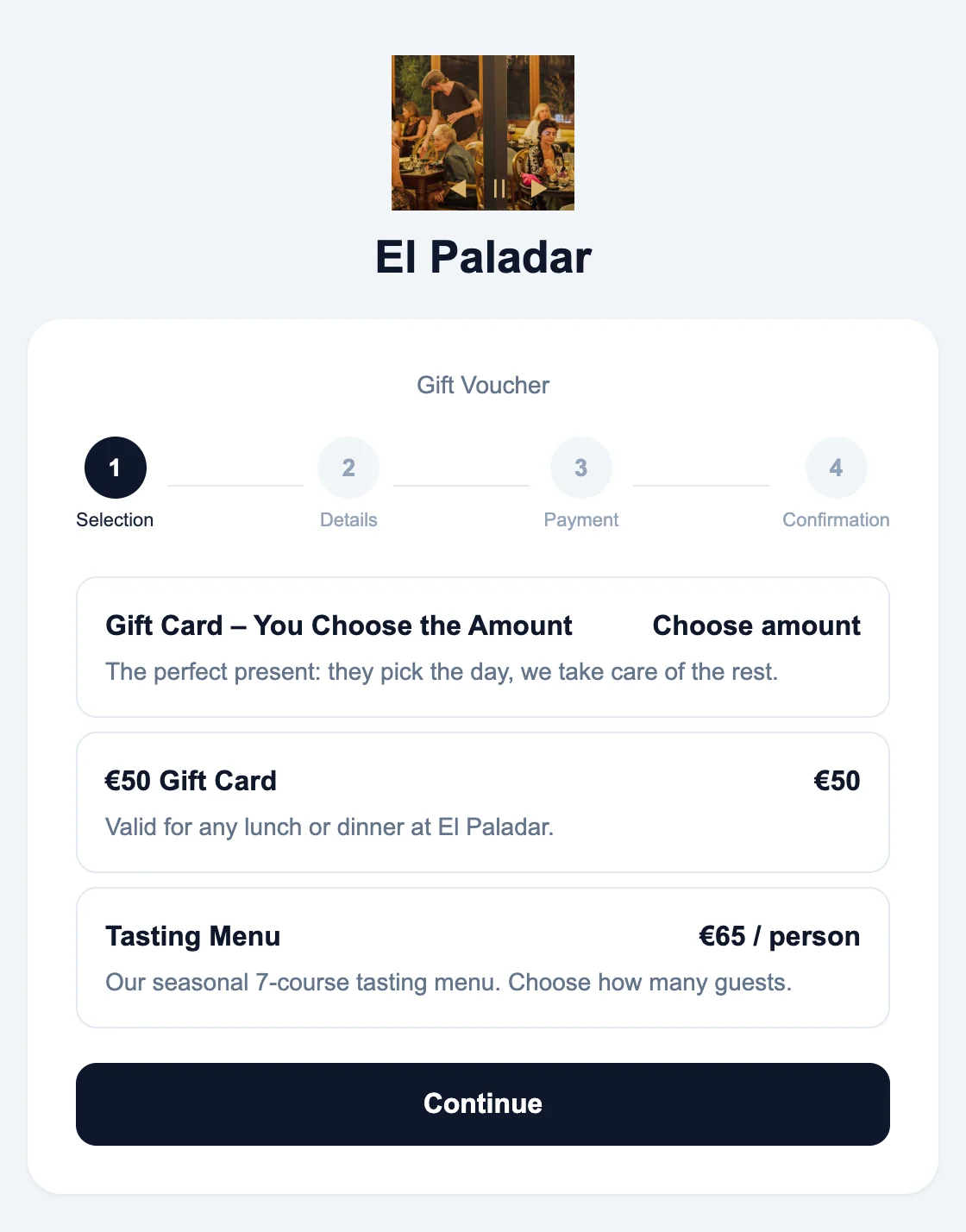
The page shows your logo and the name of your restaurant, so the customer always knows where they are buying. It works on any device and you don't need to create a page in WordPress: share the link on Instagram, WhatsApp, in your newsletter or on a website that is not made with WordPress.
Add &lang=es (or any other language) to show the page in another language. By default it uses the language of the restaurant.
Prefer a button on your WordPress website? Paste the shortcode of the gift voucher into any page. It shows a button that opens the purchase in a popup:
[rr_voucher id="235" button="Buy a gift voucher"]
Each button can be styled or tracked by its id: .alexr-gift-card-235 (wrapper) and .alexr-voucher-btn-235 (button).
4. How customers buy
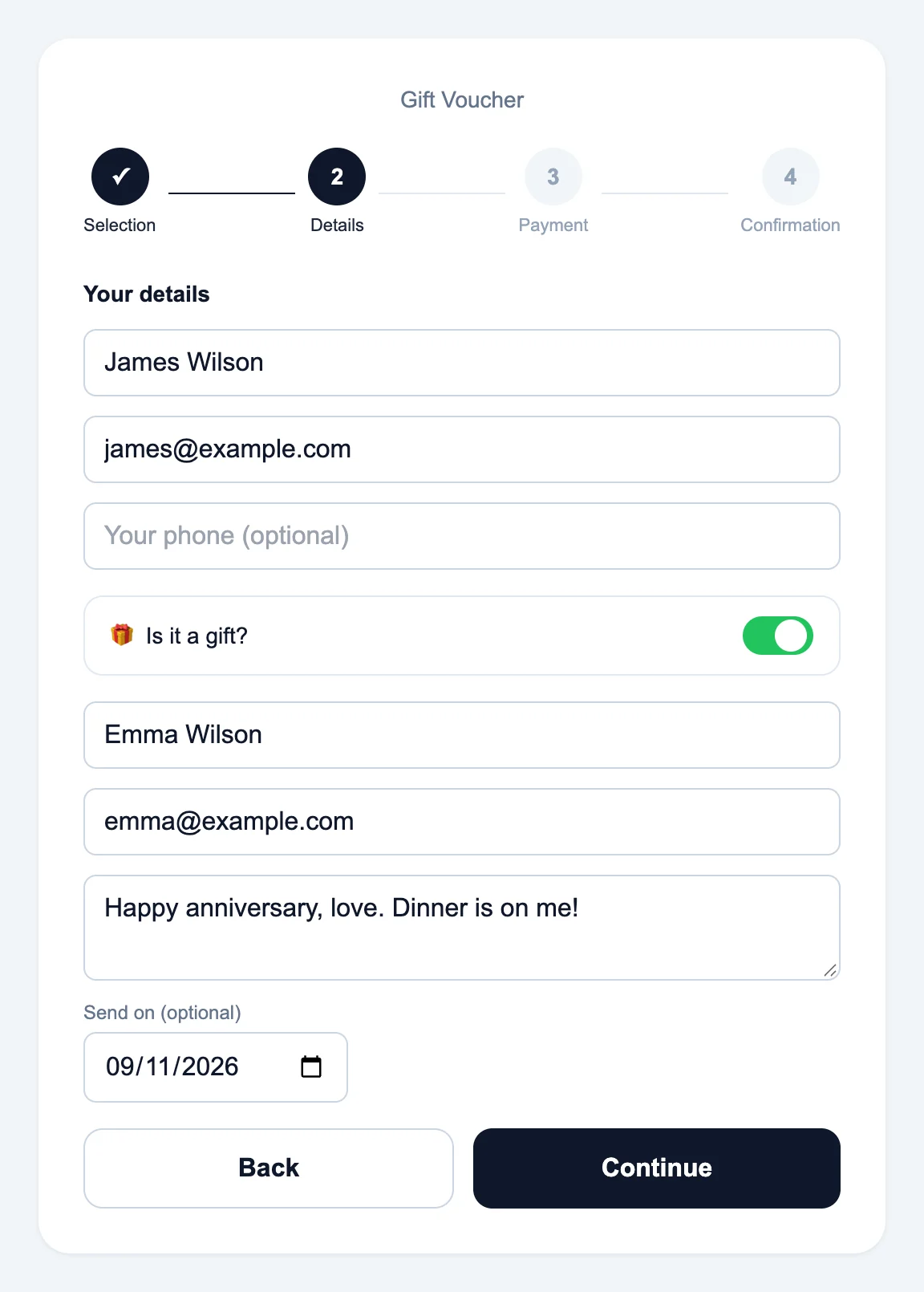
The purchase has four steps: Selection, Details, Payment and Confirmation.
Selection — the customer picks the gift voucher. For a free amount they type the value; for a menu per person they choose how many persons and see the total.
Details — name and email of the buyer. If it is a gift, they add the name and email of the recipient, a personal message and, optionally, the day the gift must arrive (a birthday, an anniversary, Christmas morning).
Payment — the customer pays with any of your active gateways.
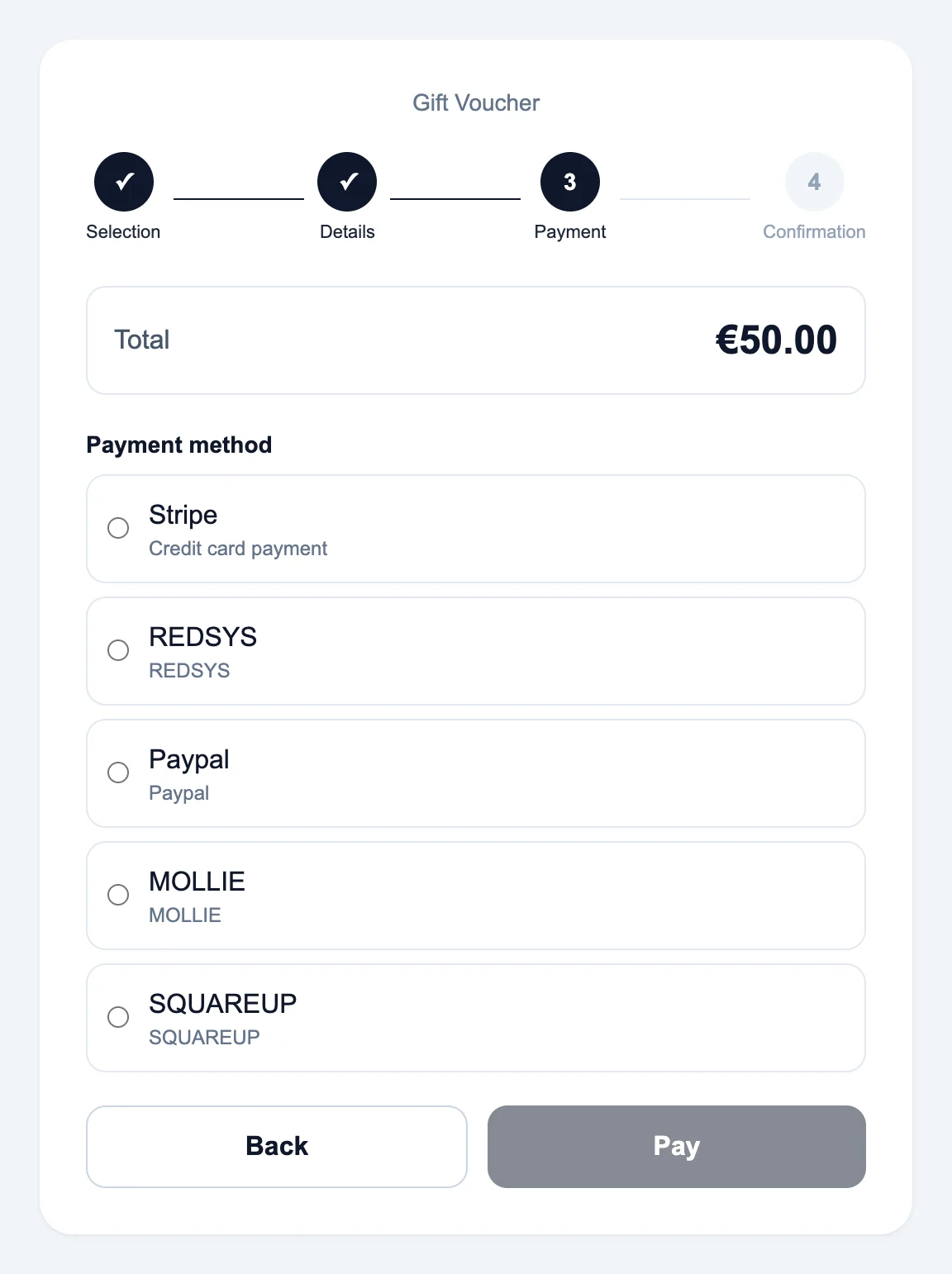
Payment gateways for gift vouchers: Stripe (card), PayPal, Redsys, Mollie, Square and Mercado Pago. Enable at least one in Settings › Payments. The box under the list of gift vouchers shows which ones are active.
Mercado Pago has no exchange rate: it is only offered for gift vouchers when its Currency is the same as the currency of the restaurant.
5. The voucher and the emails
Once the payment is confirmed, the customer lands on the voucher page: the code, the value, who it is for and the expiry date, ready to print or save as PDF.
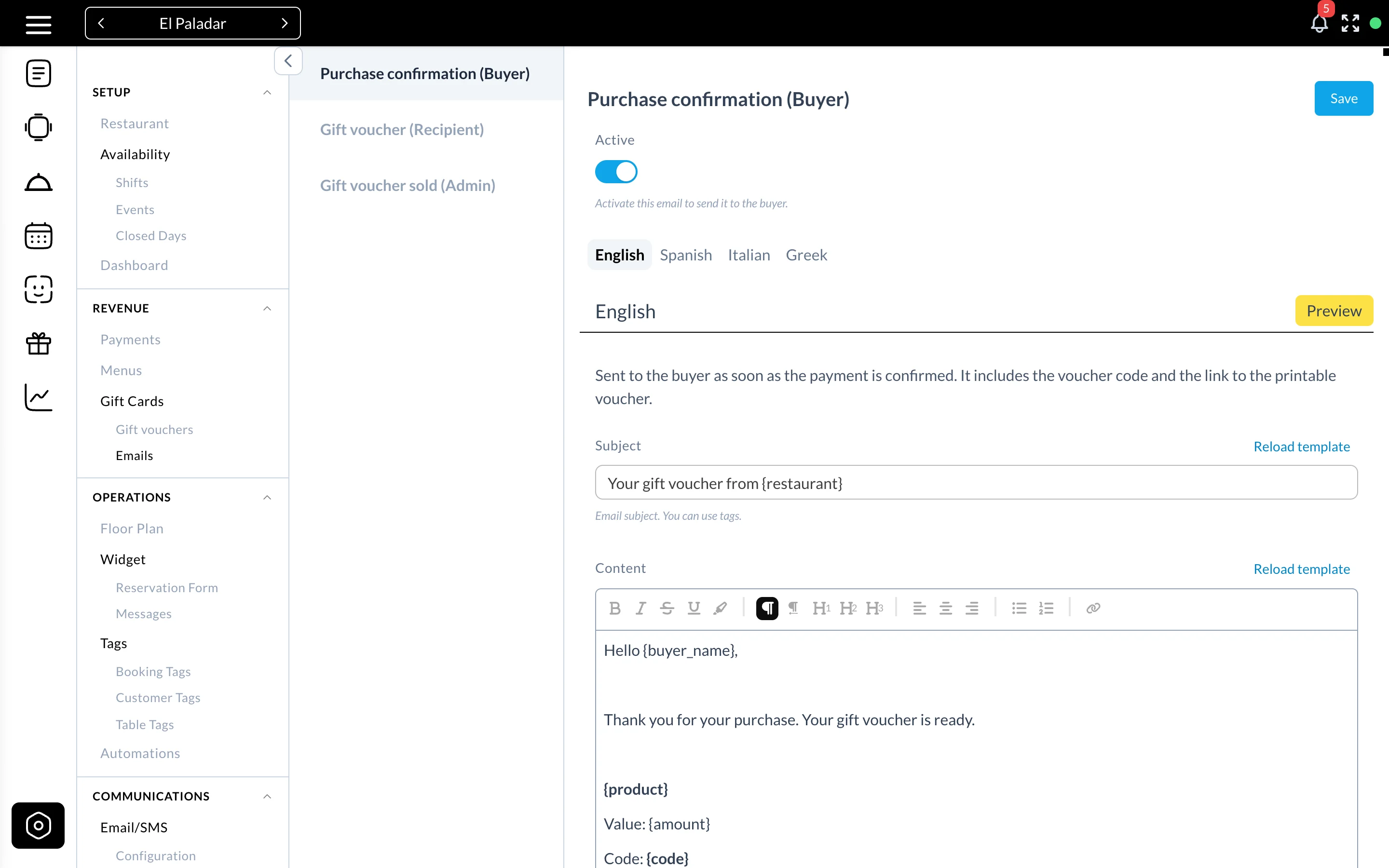
Three emails are sent, each one can be switched off and edited per language in Settings › Gift Cards › Emails:
- Purchase confirmation (Buyer) — right after the payment, with the code and the link to the voucher. It also includes a link to buy another gift voucher.
- Gift voucher (Recipient) — right away, or on the delivery date chosen by the buyer.
- Gift voucher sold (Admin) — to the restaurant (empty address = the email of the restaurant).
Tags such as {code}, {amount}, {product}, {recipient_name}, {message}, {voucher_link} or {purchase_link} are listed in the editor.
6. Redeem a gift voucher
Online, in the booking widget
When a booking requires an online payment, the guest clicks Do you have a gift voucher? and enters the code. The balance is applied to the payment: if it covers everything there is nothing left to pay, otherwise the rest is paid with the usual gateway. It is not available for card guarantees (pre-authorisations) or when modifying a booking.
At the restaurant
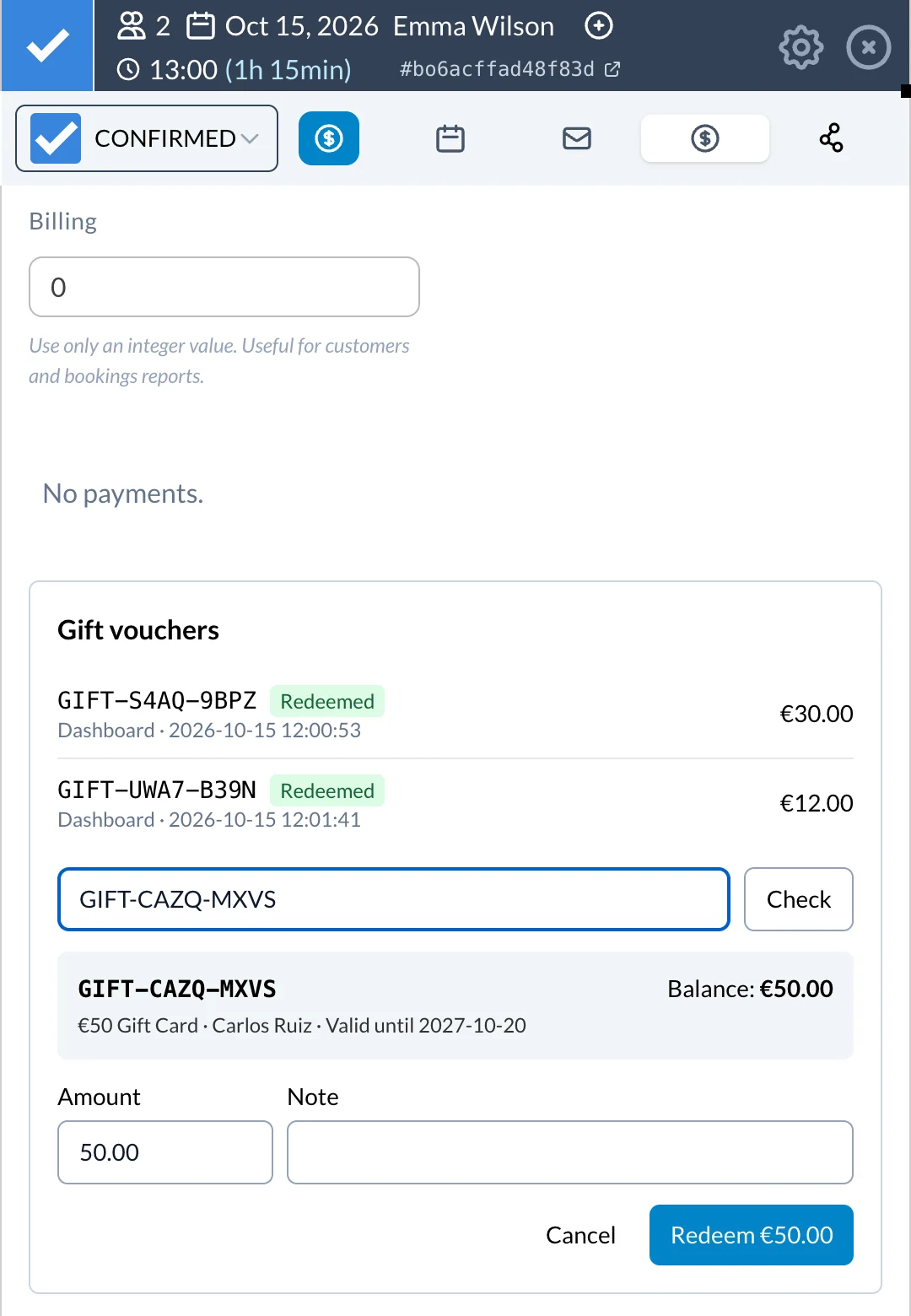
Open the booking › Payments tab › Redeem gift voucher. Type the code and click Check: you see the gift voucher, the recipient, the balance and the expiry date. Enter the amount (part of the balance is fine, the rest stays for next time) and redeem.
Cancelled bookings
If a booking paid with a gift voucher is cancelled or denied, the balance goes back to the voucher automatically. Deleting a booking from the dashboard does not give the balance back: cancel it first.
Every movement is recorded, so a voucher can never be spent twice.
7. Manage your gift vouchers
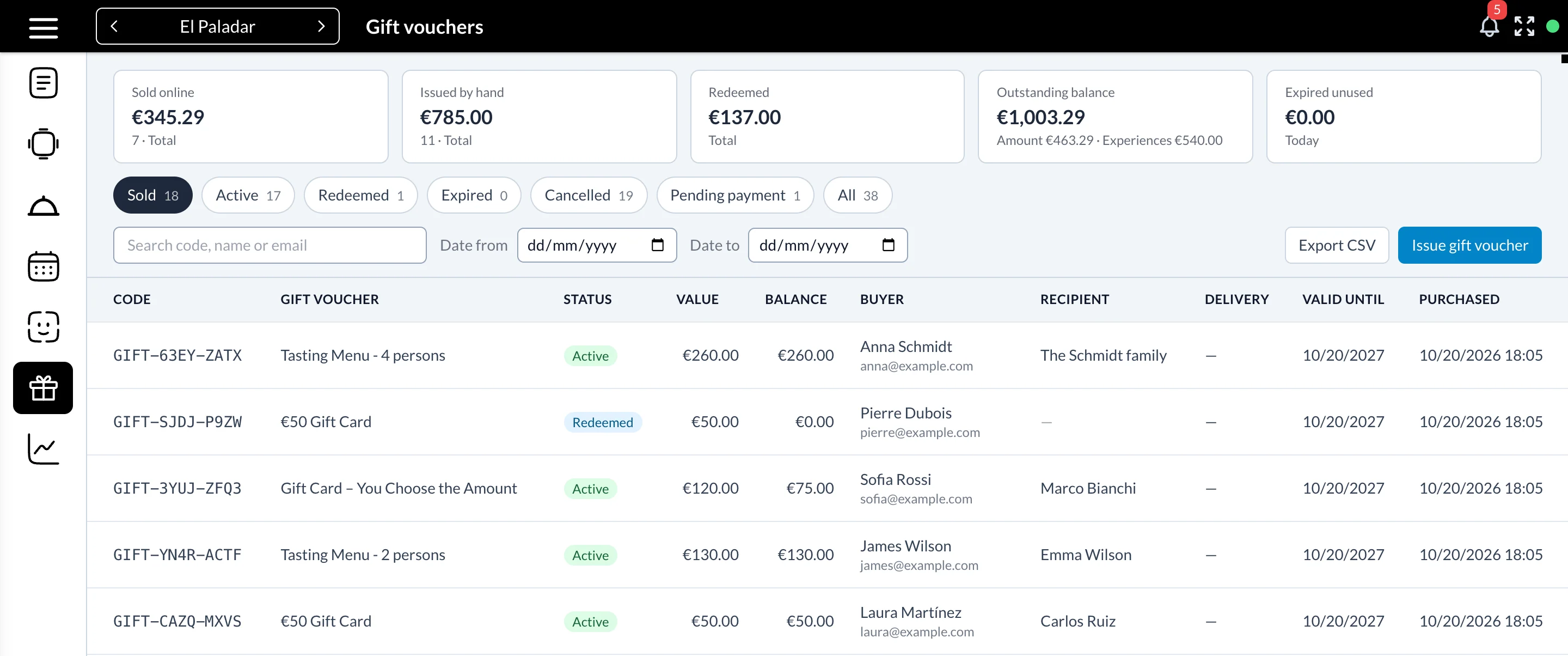
Click the gift icon in the left menu to see all the gift vouchers.
Totals at the top:
- Sold online and Issued by hand
- Redeemed
- Outstanding balance — what you still owe your guests, split between amounts and experiences
- Expired unused
Filter by status, search by code, name or email, filter by purchase date and export to CSV what the filters show.
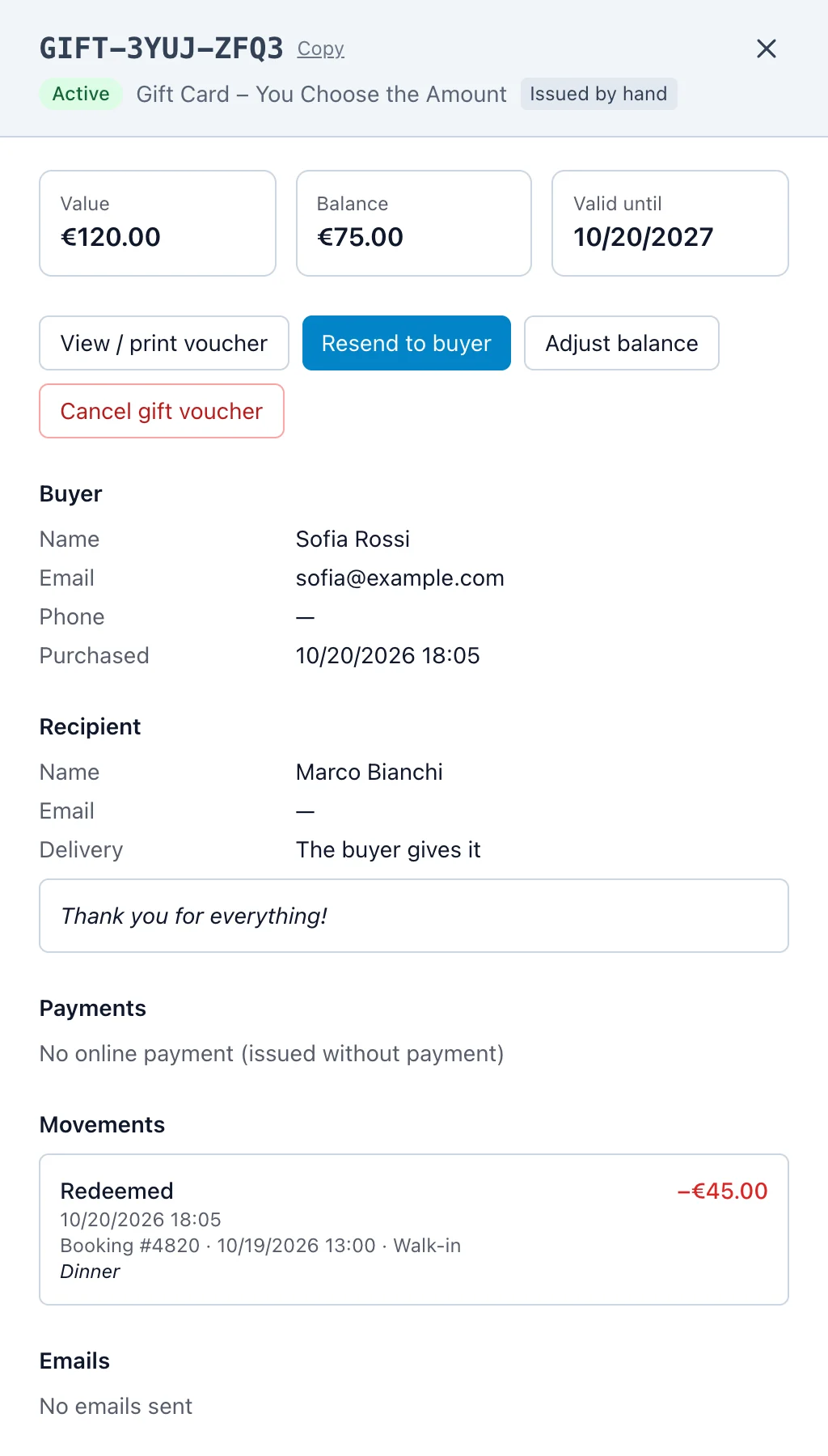
Click a gift voucher to open its detail: buyer, recipient, payments, every movement (redemptions with their booking, refunds, adjustments) and the emails sent. From there you can:
- View / print voucher
- Resend it to the buyer or to the recipient (or send a scheduled gift now)
- Adjust balance — add or remove balance, with a reason
- Cancel gift voucher — the balance goes to zero (refund the payment in the gateway by hand)
8. Issue a gift voucher by hand
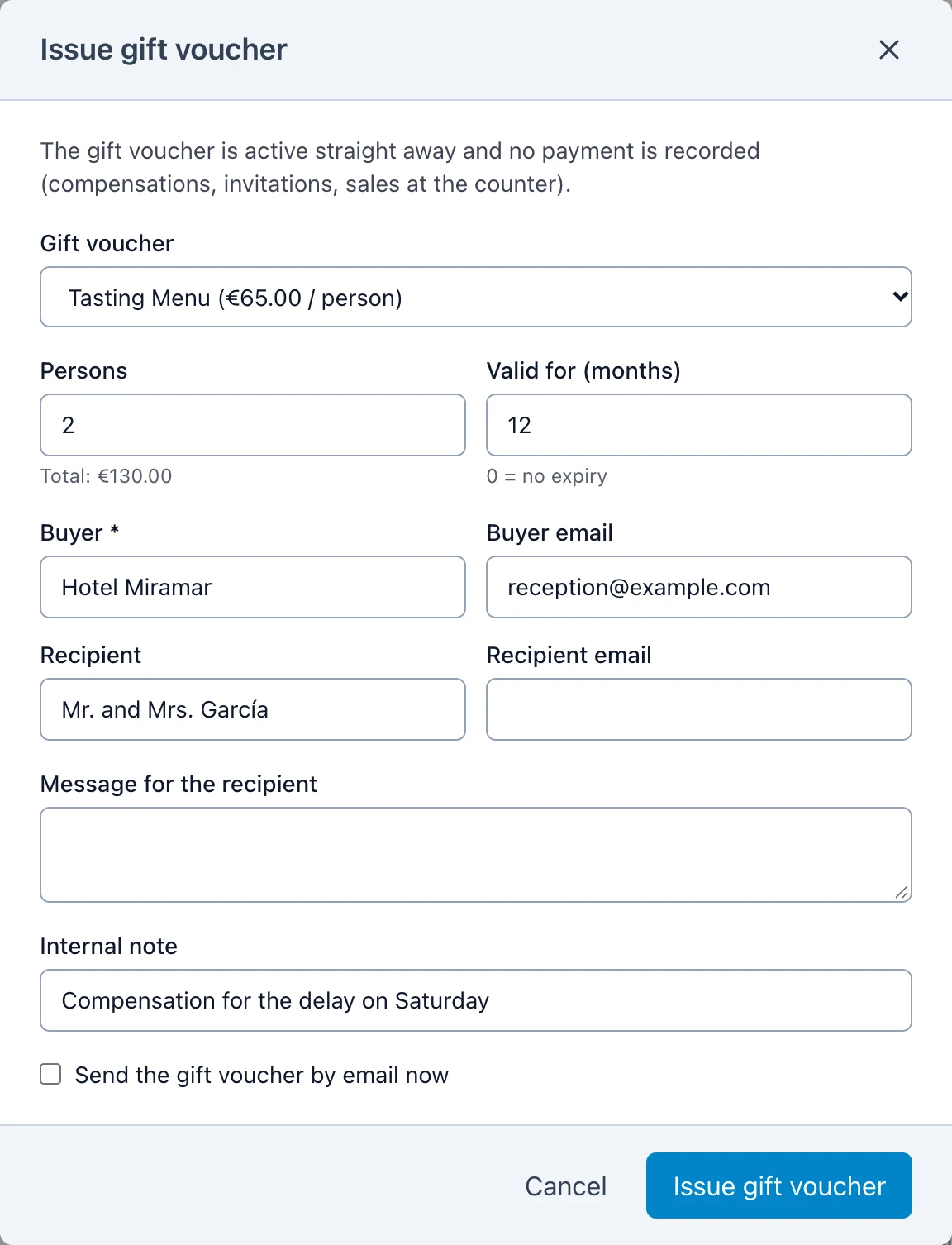
Use Issue gift voucher to create a voucher without an online payment: a compensation, an invitation, a sale at the counter or a voucher for a company. Choose one of your gift vouchers (or a free amount), the persons for a menu per person, the buyer and the recipient, add an internal note and, optionally, send it by email straight away.
The voucher is active immediately and appears as Issued by hand in the totals.
9. Statuses and automatic tasks
| Status | Meaning |
|---|---|
| Pending payment | Bought, payment not confirmed yet |
| Active | Paid; it can be used while it has balance and has not expired |
| Redeemed | The balance has been used up |
| Expired | Past its expiry date |
| Cancelled | Cancelled by staff, or purchase abandoned |
With the PRO plugin, every hour:
- active vouchers past their expiry date become Expired (their balance is kept for the reports)
- purchases left unpaid for 48 hours are Cancelled — if the gateway confirms the payment later, the voucher is still issued
- scheduled gifts are sent on their delivery date
10. Permissions
In the user roles, the permission Gift vouchers controls who can view the list, edit (issue, adjust, cancel, resend) and export it. Redeeming a voucher on a booking requires permission to edit bookings.